AI Assistant Beginner Setup Guide: Build One Today
2026-07-30

The fastest path to a working AI assistant is this: pick one practical task, choose a no-code or managed OpenClaw path, and follow a short test-then-iterate loop. Most beginners get their first assistant running quickly with no coding required. Free-tier tools cover the basics; managed hosting is available at a low monthly cost if you want persistent memory and zero sysadmin work.
Your immediate next three actions:
- Pick one task (a daily email brief is the best starter).
- Choose your path (no-code builder, Custom GPT, or managed OpenClaw hosting).
- Follow the worked example in Section 8 to get something live today.
***
Table of Contents
- What use case should you start with?
- Which technical path is right for you?
- Which tools and templates should you actually use?
- How do you write a system prompt that actually works?
- How do you test the assistant and fix what's broken?
- Why does deployment choice matter for beginners?
- Worked example: build a daily email brief assistant
- Where do you go after your first assistant is working?
- Key Takeaways
- Skip the server setup: Clawbase runs OpenClaw for you
What use case should you start with?
The blank-cursor problem is the real barrier for most beginners, not technical skill. You open a new assistant, stare at an empty prompt field, and freeze. The fix is simple: decide what you want the assistant to *do* before you touch any settings.
Industry experts recommend one focused automation first. Get it working reliably, then add more. This "trust-first" approach keeps things manageable and prevents noisy, unreliable outputs from killing your enthusiasm early.
Good starter use cases:
- Daily email brief — scans your inbox each morning and surfaces the five most important messages.
- Writing assistant — drafts replies, summarizes documents, or edits copy on demand.
- Meeting notes — transcribes or summarizes a pasted transcript into action items.
- Quick research summary — pulls key points from a URL or pasted article.
- Simple scheduler — drafts a weekly agenda from a list of tasks you paste in.
Use this quick decision checklist to evaluate any candidate task before committing:
- Does it happen at least a few times per week? (Frequency justifies the setup time.)
- Do you already have easy access to the data it needs? (Email, docs, calendar.)
- Is the output format predictable? (Bullets, a short paragraph, a table.)
- Does it involve sensitive personal or financial data you're not ready to share with a cloud service?
The daily email brief scores well on all four. It's repeatable, the data is accessible, the output is a short list, and you control which inbox you connect.
Pro Tip: *Start with a task you already do manually every day. If you spend five minutes each morning skimming email for urgent items, that's the automation. The assistant replaces the manual version of you, not some imaginary future workflow.*
***
Which technical path is right for you?
For most beginners, no-code tools or managed OpenClaw hosting are the right answer. Both paths get you to a working assistant without editing config files or managing servers. The table below maps the main options against the factors that actually matter at the start.

| Approach | Skill required | Cost to start | Time to first assistant | Maintenance | Control & privacy | Best for |
|---|---|---|---|---|---|---|
| No-code builder | None | Free tier available | 30 minutes | Low | Moderate (cloud) | Absolute beginners, quick experiments |
| Custom GPT (OpenAI) | Minimal | Free / $20/mo Plus | 20–40 min | Low | Moderate (OpenAI cloud) | Lightweight customization, ChatGPT users |
| Managed OpenClaw (Clawbase) | None | From $16/mo | 30–60 min | None (handled for you) | High (dedicated server) | Non-technical users who want persistent memory and always-on availability |
| Self-hosted OpenClaw | Intermediate–Advanced | Low (server costs) | Several hours | High | Highest | Developers comfortable with sysadmin work |
A few quick rules of thumb:
- If you want something running in under 30 minutes with no account setup beyond an email address, start with a no-code builder.
- If you already use ChatGPT and want a customized version for one task, the Custom GPT builder inside OpenAI is the lowest-friction upgrade.
- If you want persistent memory, always-on availability, and integrations with Telegram or Slack without touching a terminal, managed OpenClaw hosting through Clawbase is the practical choice.
- Self-hosting OpenClaw is powerful, but the sysadmin overhead — config files, API key rotation, uptime monitoring — typically exceeds a beginner's patience. Save it for later.
Security note: Never paste API keys into a shared document or a public chat window. Store them in a password manager or your OS keychain from day one.
***
Which tools and templates should you actually use?
Three routes cover the vast majority of beginner needs. Here's what each one is, what it's good for, and what to look for when you set it up.
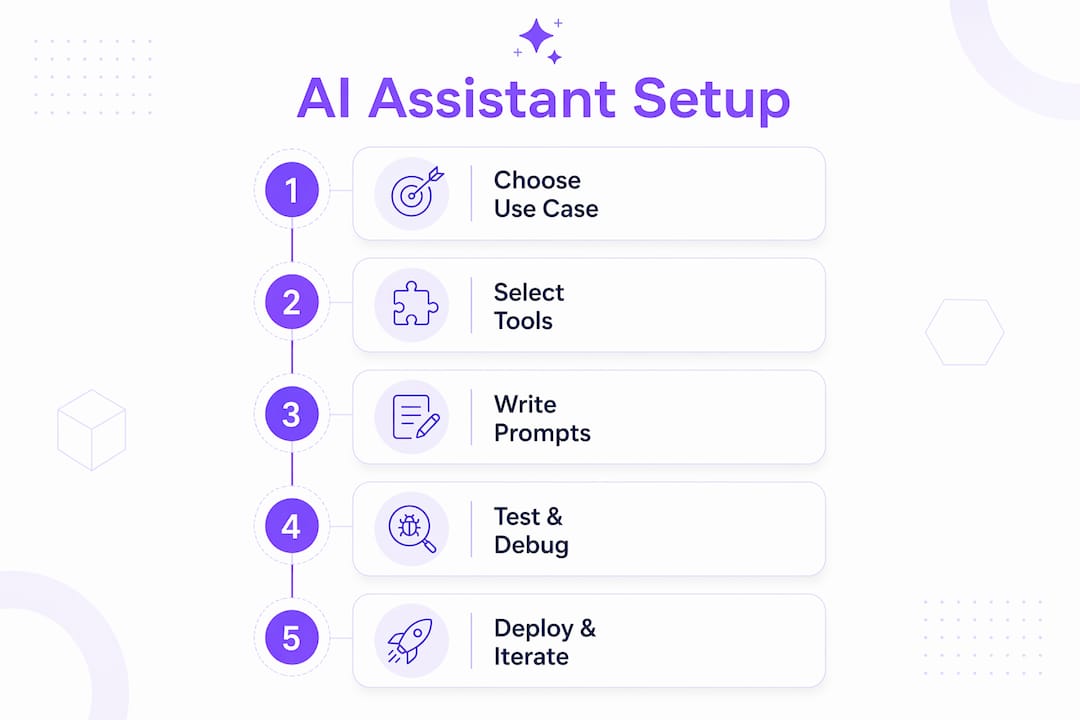
OpenAI Custom GPT builder is the most accessible entry point for anyone already using ChatGPT. You get an Instructions field, conversation starters, and optional API Actions. It's free to configure; you need a ChatGPT Plus subscription to publish or use Custom GPTs beyond the basic tier. For a daily email brief, you'd paste your system prompt into the Instructions field and test it manually before connecting any external data.
OpenClaw is an open-source personal AI assistant built for automation, file management, and multi-step workflows. It supports over 50 AI models, persistent memory, and integrations with messaging platforms. Running it yourself requires server setup and ongoing maintenance. That's where Clawbase comes in.
Clawbase is managed hosting for OpenClaw. One-click deployment on a dedicated, encrypted cloud server means you skip the sysadmin work entirely. Beginner-friendly setup is the explicit design goal: no terminal, no config files, no manual updates. Persistent memory is built in, so your assistant remembers context across sessions without you re-explaining your preferences every time.
Hardware and software prerequisites:
- Any modern laptop or desktop (Windows, macOS, or Linux) with a current browser.
- A stable internet connection.
- An email account (Gmail or Outlook work best for the email brief example).
- For Clawbase: just a browser and a credit card or crypto wallet for the subscription. No local server required.
- For self-hosted OpenClaw: a Linux VPS with at least 2 GB RAM, Docker installed, and comfort with the command line.
Beginner-friendly features to look for in any tool: task tiles or starter templates, persistent memory or project context, clear permission controls, and a test mode before you schedule any automation.
***
How do you write a system prompt that actually works?
The single best practice is specificity. Define the trigger, scope, data source, output format, and exclusions in one place. Vague instructions produce vague outputs; concrete instructions produce reliable ones.
The formula: When [trigger], scan [data source] for [scope], then output [format], excluding [exclusions].
Here's a ready-to-use system prompt for the daily email brief:
> Daily Email Brief — System Prompt
> You are a personal email assistant. Every morning at 7:30 AM, scan the Gmail inbox for emails received in the last 18 hours. Prioritize: (1) emails requiring a reply, (2) emails from known contacts, (3) emails with deadlines or action items. Ignore newsletters, automated notifications, and promotional mail. Output a bulleted list of no more than 8 items. Each bullet: sender name, subject line, one-sentence summary, and a [Reply needed] or [FYI] tag.
Two more starter templates:
Writing assistant:
> You are a professional writing editor. When I paste text, identify the three most important improvements (clarity, conciseness, tone). Suggest specific rewrites for each. Do not rewrite the entire passage unless I ask.
Meeting notes summarizer:
> You are a meeting notes assistant. When I paste a transcript or rough notes, extract: (1) key decisions made, (2) action items with owner names if mentioned, (3) open questions. Format as three labeled sections. Keep each section under five bullets.
A short example conversation for the email brief:
User: Here are my emails from this morning. [pastes email list]
Assistant:
- Sarah Chen — "Q3 Budget Review" — Requesting approval on revised figures by Friday. [Reply needed]
- Dev Team — "Deploy scheduled for Thursday" — Confirming 2 PM deployment window. [FYI]
- Mark Rivera — "Partnership proposal" — Attached deck for your review before Tuesday's call. [Reply needed]
Pro Tip: *Structure your system prompt with a "Do" section and a "Don't" section. "Do: use bullet points. Don't: include email body text verbatim." This two-part format cuts ambiguous outputs faster than any other single change.*
***
How do you test the assistant and fix what's broken?
Test with real samples, verify output format, then run three quick fixes before scheduling any automation. Expect two to three iterations before the output is reliable enough to trust on its own.
Testing checklist:
- Run the assistant on a real sample (five to ten actual emails, a real meeting transcript).
- Check output format: are bullets consistent? Are tags applied correctly?
- Test edge cases: an empty inbox, a very long email, a thread with no clear action item.
- Check for false positives: is it flagging newsletters as action items?
- Verify exclusions: are automated notifications being filtered out?
Common pitfalls and fixes:
- Vague prompt — The assistant summarizes everything instead of prioritizing. Fix: add explicit priority rules and a maximum item count.
- Missing context — The assistant doesn't know who your important contacts are. Fix: add a short "My key contacts" list to the system prompt or memory file.
- Over-broad data scope — It's pulling emails from three weeks ago. Fix: specify the time window explicitly ("last 18 hours").
- API permission errors — The assistant can't access your inbox. Fix: re-authorize the Gmail or Outlook connection and check that the correct scopes are enabled.
Simple success metrics to track:
- Time saved per day (compare manual scan time vs. reading the brief).
- Accuracy rate: what percentage of flagged emails genuinely needed attention?
- Number of useful hits per run (aim for 5–8 relevant items, not 20).
Persistent memory is often the difference between a novelty and a daily tool. Set up a small context file with your name, role, key contacts, and preferences, and update it monthly. This eliminates the need to re-explain yourself every session.
***
Why does deployment choice matter for beginners?
For non-technical users, managed OpenClaw hosting is the most reliable path to an always-on assistant. Self-hosting introduces a stack of operational tasks — editing config files, rotating API keys, monitoring uptime, managing memory persistence — that most beginners have no interest in handling. Managed hosting removes all of that.
Here's what Clawbase handles on your behalf:
- Persistent memory management — your assistant remembers context across sessions without manual intervention.
- 99.9% uptime on a dedicated, encrypted cloud server.
- Automated updates — no manual patching or version management.
- Daily encrypted backups — your data and configurations are protected.
- Integrations with Telegram, Discord, Slack, and WhatsApp out of the box.
- Access to 50+ AI models with multi-model routing, so you can switch models without reconfiguring.
Timeline and cost comparison:
- No-code builder: free to low-cost, live in under 30 minutes, limited memory and integrations.
- Custom GPT (OpenAI): $20/month for Plus, live in 20–40 minutes, no persistent memory across sessions by default.
- Clawbase managed hosting: from $16/month, live in 30–60 minutes, full persistent memory and always-on availability.
- Self-hosted OpenClaw: server costs vary, setup takes several hours, ongoing maintenance required.
Maintenance checklist for any deployment:
- Review and rotate API keys every 90 days.
- Check memory files monthly and remove outdated context.
- Verify integrations are still authorized (tokens expire).
- Review automation outputs weekly during the first month.
For a deeper look at why hosting infrastructure matters for AI assistants, the hosting trade-offs guide covers the technical reasoning in plain English.
***
Worked example: build a daily email brief assistant
This example covers the complete path from idea to a working automation. Follow it in one session and you'll have something real running by the end.
Step-by-step:
- Plan the filter. Decide: Gmail or Outlook? Last 18 hours. Priority: replies needed, known contacts, deadlines. Exclude: newsletters, promotions, automated alerts.
- Connect your inbox. In your chosen tool (Custom GPT with Actions, or OpenClaw via Clawbase), authorize read-only access to your email. Read-only is safer than full access for a first setup.
- Write the system prompt. Use the template from Section 5 above. Paste it into the Instructions field (Custom GPT) or the system prompt configuration (OpenClaw).
- Run a manual test. Paste five real emails from this morning into the chat. Check the output against the checklist in Section 6.
- Iterate once. If the output includes newsletters, add "Ignore any email from a domain ending in .newsletter or tagged Promotions in Gmail." Run the test again.
- Schedule the automation. Set a daily trigger at 7:30 AM. In Clawbase, this is a scheduled task in the dashboard. In a Custom GPT, you'll need a third-party scheduler like Zapier to trigger the prompt.
Validation steps:
| Check | Pass condition |
|---|---|
| Output format | Bulleted list, max 8 items, each with sender, subject, summary, tag |
| Exclusions working | No newsletters or promotional emails in the list |
| Priority order | Reply-needed items appear before FYI items |
| Time window | Only emails from the last 18 hours included |
| Edge case: empty inbox | Assistant returns "No priority emails in the last 18 hours" |
Troubleshooting this example:
- *Assistant returns too many items:* Add "Return no more than 8 items" explicitly to the prompt.
- *Newsletters still appearing:* Add a specific exclusion list of known sender domains.
- *Wrong time window:* Check that your timezone is set correctly in the tool's settings.
- *Authorization error:* Re-connect the email integration and confirm read-only scope is selected.
The step-by-step personal AI agent guide covers additional prompt structures and validation approaches if you want to extend this example to other data sources.
***

Where do you go after your first assistant is working?
Once the email brief is running reliably for a week, you're ready to expand. Here's what to do next, in order:
- Add memory context. Create a short
my-context.mdfile with your name, role, key contacts, and working preferences. Upload it to your assistant's memory or project files. This is the single highest-leverage improvement after the first automation. - Schedule a second automation. Good candidates: a weekly meeting prep summary, a writing feedback loop, or a research digest. Use the productivity use cases list for ideas.
- Set a review cadence. Check your automation's outputs every Monday for the first month. Adjust the prompt when you notice patterns in what it gets wrong.
- Join a community for templates. The Clawbase blog and the beginner checklist are good starting points for structured next steps.
- Explore structured AI workflow design. Resources like Spark Concept offer frameworks for productizing and structuring guided AI experiences beyond basic prompting.
Useful references:
- OpenClaw beginner setup guide — official walkthrough for getting OpenClaw running.
- Personal AI agent step-by-step — covers prompt structure, testing, and scheduling in detail.
- Claude personal assistant guide — context management and memory setup patterns.
- Clawbase blog — use cases, templates, and how-to pages for OpenClaw on managed hosting.
***
Key Takeaways
The most effective approach to setting up your first AI assistant is to pick one practical task, follow a structured prompt formula, and deploy on a path that matches your technical comfort level.
| Point | Details |
|---|---|
| Start with one use case | A daily email brief is the best first automation: repeatable, low-risk, and immediately useful. |
| Use the prompt formula | Specify trigger, data scope, output format, and exclusions to get reliable outputs from the start. |
| Test before scheduling | Run two to three manual tests on real samples and fix edge cases before automating. |
| Match path to skill level | No-code or managed hosting gets you live in 30–60 minutes; self-hosting takes hours and ongoing maintenance. |
| Clawbase for zero sysadmin | Clawbase handles uptime, memory, updates, and integrations so you focus on the automation, not the infrastructure. |
***
The case for starting smaller than you think you should
Most beginners I talk to want to build a comprehensive AI assistant on day one. They sketch out a system that reads email, manages their calendar, drafts proposals, and monitors news, all at once. Then they spend a weekend configuring it, get frustrated when one piece breaks, and abandon the whole thing.
The guides that actually produce working assistants share one trait: they force you to finish something small first. A single automation that runs reliably for a week teaches you more about prompt design, data access, and iteration than any tutorial. It also builds the kind of trust that makes you willing to give the assistant more responsibility over time.
The blank-cursor problem is real, but it's not a technical problem. It's a scoping problem. The moment you decide "this assistant does exactly one thing," the path forward becomes obvious. Pick the email brief. Get it working. Then add the next piece.
One more thing worth saying: mistakes in this process are cheap. A bad prompt produces a bad output. You fix the prompt. Nothing breaks, nothing is lost. The iteration loop is fast and forgiving, which is exactly what makes this a good place to experiment.
***
Skip the server setup: Clawbase runs OpenClaw for you
If you've read this far and the sysadmin path still sounds like more work than you want, Clawbase is the direct answer. It's managed hosting for OpenClaw, built specifically for users who want a powerful, always-on AI assistant without touching a terminal.
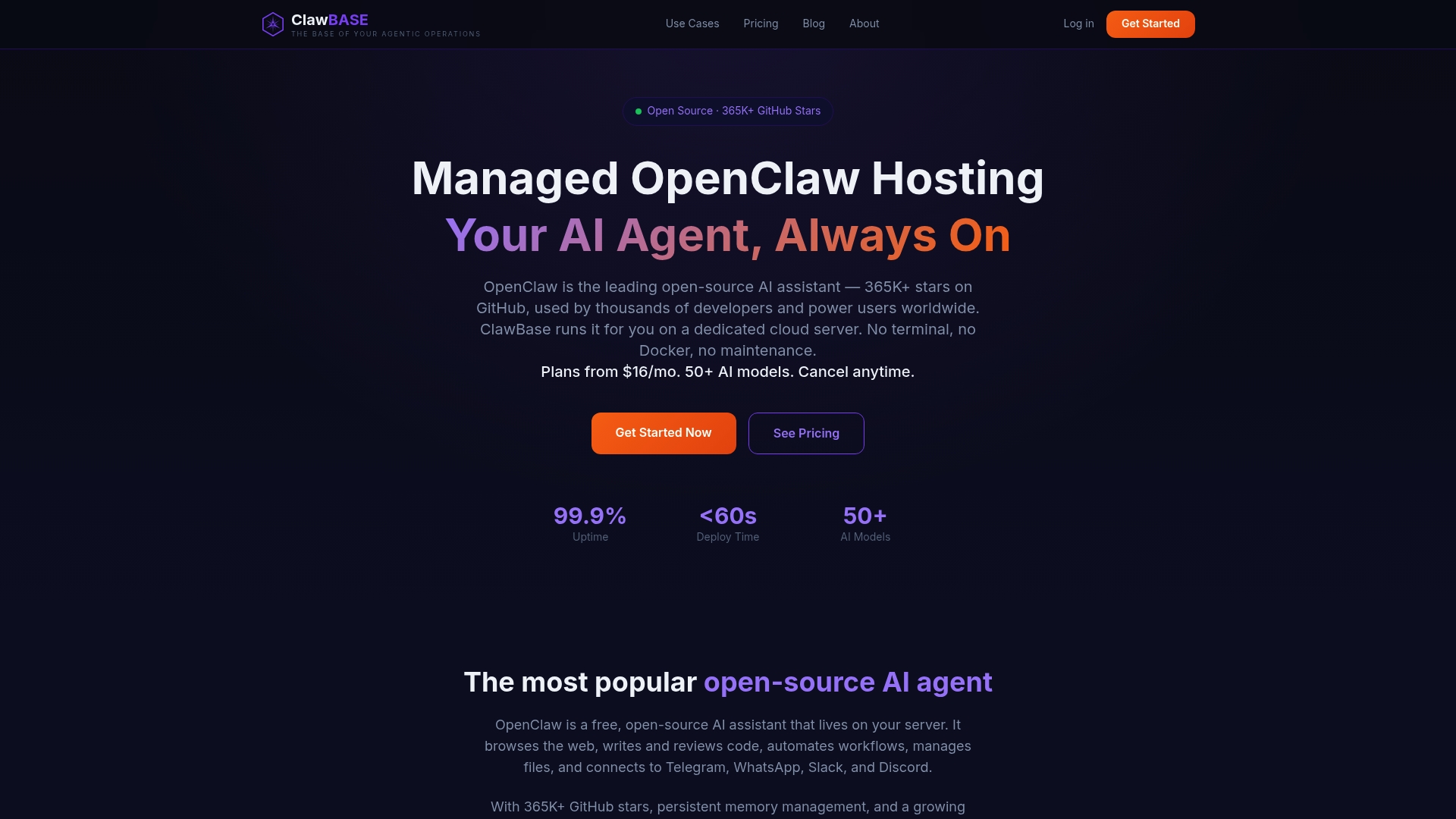
One-click deployment puts your OpenClaw instance on a dedicated, encrypted cloud server. From there, Clawbase handles everything operational:
- 99.9% uptime with no manual monitoring required.
- Persistent memory that carries context across every session.
- Automated updates and daily encrypted backups built in.
- Native integrations with Telegram, Discord, Slack, and WhatsApp.
- 50+ AI models available with multi-model routing.
Pricing starts at a modest monthly rate, and there's a free trial on the entry plan so you can test the full setup before committing. Payment works via credit card or cryptocurrency. Before connecting any accounts, review Clawbase's privacy policy to confirm how your data is stored and processed on the dedicated server.
Start your free trial and have your first OpenClaw assistant live today, or browse the use case library to see what other automations are worth building next.
***
Authoritative sources and further reading
- How to Set Up OpenClaw for Beginners — official walkthrough covering one-click setup, managed hosting benefits, and time expectations.
- How to Set Up Your Personal AI Agent (Step by Step) — detailed prompt structure, testing routine, and scheduling guidance.
- Build a Personal AI Assistant with Claude — context management, persistent memory setup, and project file patterns.
- AI Assistants for Business — Slack — productivity use cases, common automation patterns, and measurable benefits.
- Norve — Beginner AI Guides — research on the blank-cursor problem and guided-step approaches that improve completion rates.
- MyAIAssistant — starter templates, task tiles, and the trust-first strategy for building automations incrementally.