What Is Workflow Trigger Automation? A Practical Guide
2026-08-22

A workflow trigger is the event or condition that starts an automated sequence. It's the tripwire, not the sequence itself: something happens (a form gets submitted, a clock hits a set time, a database row changes), and that event hands control to a workflow engine that runs a series of predefined actions.
Use a trigger whenever you need a reliable, auditable handoff from a real-world signal into automated work. Microsoft Power Automate frames it plainly: triggers can be automatic, instant, or scheduled, and connectors ship prebuilt triggers for most common services. That's the core distinction worth internalizing before you build anything.
A few things to settle before you wire one up:
- Choose a trigger, not a workaround. If you're checking a database every few minutes "just in case," you probably need an event-driven trigger instead.
- Triggers start things; actions do things. Don't confuse the two. A trigger fires once per qualifying event. Everything downstream is action logic.
- Watch for retroactivity and duplicates. Most trigger systems won't process historical data automatically, and a poorly filtered trigger can fire the same automation twice for one event.
Key Takeaways
A workflow trigger starts automation reliably only when it pairs the right trigger type with idempotency handling and complete payload context.
| Point | Details |
|---|---|
| Trigger starts, action executes | A trigger only decides when a workflow begins; the workflow logic and actions handle everything after. |
| Match trigger type to latency needs | Event-driven triggers suit real-time needs; scheduled and polled triggers suit predictable, lower-urgency work. |
| Payload completeness drives routing | Incomplete context forces extra API calls or guesswork, which slows debugging and risks wrong actions. |
| Idempotency prevents duplicate runs | Dedup keys, upserts, and checkpoints stop the same event from triggering an automation twice. |
| Backfills aren't automatic | Triggers activated after data exists typically require a manual backfill to process historical records. |
Table of Contents
- What Is a Workflow Trigger, Exactly?
- What Are the Main Types of Workflow Triggers?
- Real Automation Workflow Examples Worth Copying
- What Context Do Triggers Pass Into a Workflow?
- Webhooks vs. Polling: Which Should You Build On?
- How Do You Choose and Design a Reliable Trigger?
- Why Do Workflow Triggers Fail, and How Do You Fix It?
- Put Your Triggers to Work with an Always-On Assistant
- The Practical Take on Workflow Trigger Automation
- Frequently Asked Questions
- Sources
What Is a Workflow Trigger, Exactly?
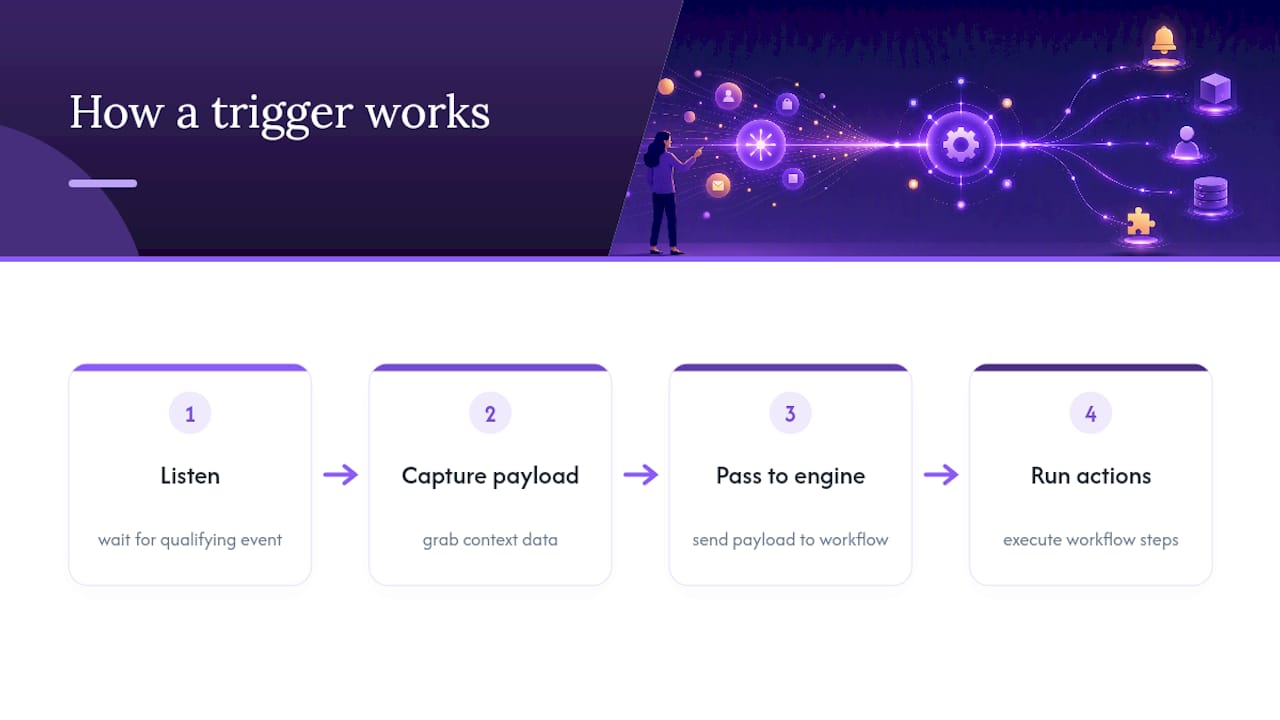
Picture three stages: Trigger → Workflow engine → Actions. The trigger detects a qualifying event. The engine receives that event as structured data. The actions execute based on what the engine finds.
That structured data is the context, sometimes called the payload. It's the packet of information the trigger hands off the moment it fires, and it typically includes:
- A unique record or resource ID
- A timestamp for when the event occurred
- User or account metadata (who did what)
- Event-specific data (the actual form fields, the changed values, the alert details)
Elastic's workflow documentation makes a point worth remembering: triggers determine *when* a workflow starts and *what it knows* the moment it starts. They are not the logic that follows. A trigger doesn't decide whether to send an email to your VIP customers versus everyone else. It just says "this happened, here's what I know," and the workflow logic takes it from there.
What Are the Main Types of Workflow Triggers?
Picking the right trigger class is mostly a latency, reliability, and cost decision, and getting it wrong is how automations quietly become unreliable.
- Event-driven (webhook/app event): Near-instant, since the source system pushes data to you the moment something happens. Best for time-sensitive workflows like fraud alerts or lead notifications, but it requires the source to support webhooks and your endpoint to stay available.
- Scheduled/time-based: Runs on a clock, hourly, daily, or on a cron expression. Predictable and easy to reason about, but never faster than its interval. Best for reports, digests, and batch cleanups.
- Polled: Your system periodically asks a source "anything new?" Reliable when webhooks aren't available, but it adds latency and can hit API rate limits if the polling interval is too aggressive.
- Manual/instant: A person clicks a button or runs a command. Zero automation risk, but zero automation benefit either, useful for one-off or human-in-the-loop steps.
- State-based: Fires when a record enters or exits a specific state (a ticket moves to "resolved," an order status changes). Robomotion's overview of automation triggers notes these hinge on accurate state tracking, so a missed state transition is a missed trigger.
Pro Tip: *If a source offers both a webhook and a polling API, default to the webhook. You'll cut latency and API usage at the same time, and platform connectors often handle the authentication headaches for you.*
Real Automation Workflow Examples Worth Copying
Seeing the trigger, context, and action chain laid out for real scenarios makes the abstraction click.
- Onboarding: New user record created → populate their profile fields, assign a welcome task to the account owner, send a welcome email with login details.
- Lead routing: Form submission → score the lead based on submitted fields, route it to the right sales rep by territory, create a CRM record with the original form data attached.
- Incident response: Monitoring alert fires → create a ticket automatically, notify the on-call engineer via chat, kick off a triage script that pulls recent logs. Many teams build this in Microsoft Power Automate using its built-in connectors for ticketing and chat platforms.
- Reporting: Scheduled recurrence (say, every Monday at 7 AM) → compile the week's metrics, format them, post the summary to Slack or email.
E-commerce follows the same pattern with retail-specific events. A "product viewed" or "added to cart" trigger can automatically launch personalized follow-up messaging, which is exactly why loyalty and review programs run on triggers rather than manual outreach.
What Context Do Triggers Pass Into a Workflow?
The payload is what makes a generic workflow behave like it was built for one specific situation. A well-formed payload typically carries the event type, a timestamp, the resource ID, user metadata, and, for updates, a diff of what changed. Some platforms also pass a version or etag so downstream logic can detect if the underlying record moved again before processing finished.
Incomplete payloads are where debugging turns painful. If your trigger only tells you "something changed" without saying what, your workflow either has to make a second API call to find out, or it guesses, and guessing is how wrong records get updated.
Pro Tip: *Log the full raw payload for your first several trigger runs, even the fields you don't think you'll need. When something breaks in week three, that log is often the only record of what the trigger actually saw.*
Webhooks vs. Polling: Which Should You Build On?
Webhooks push data to you the instant an event happens, giving you low latency without hammering an API. The catch is you need a publicly reachable endpoint, and if that endpoint goes down, you can miss events entirely unless the source retries.
Polling pulls data on your schedule, which sidesteps the public endpoint requirement but trades latency for safety, and aggressive polling intervals risk hitting rate limits fast.
Prebuilt connectors, the kind you find in Power Automate or workflow builders like Smartsheet's trigger blocks, often make this decision for you. They handle authentication and expose the trigger type the underlying service actually supports, which is usually the fastest path to a working integration.
Idempotency is the part teams skip until it bites them. Practical techniques include:
- Attach a unique dedup key to every event and check it before processing.
- Design actions to be idempotent themselves (an "upsert" instead of an "insert").
- Use checkpoints or sequence numbers so a replayed event picks up where it left off instead of duplicating work.
On the operational side, ClickUp's documentation on automation triggers points out that multiple automations sharing the same trigger will fire concurrently unless you add filtering conditions, which is a common source of unexpected duplicate actions. Pair that filtering with a sane retry policy: exponential backoff for transient failures, requeueing for temporary outages, and a dead-letter queue for anything that fails repeatedly.
Pro Tip: *Route persistent failures to a dead-letter queue instead of letting them silently retry forever. It gives you an audit trail and stops one broken event from consuming your retry budget.*
How Do You Choose and Design a Reliable Trigger?
- Define the latency you actually need. Real-time and "good enough within an hour" call for different trigger types.
- Pick the trigger class (event-driven, scheduled, polled, manual, or state-based) based on that latency and what the source system supports.
- Add filters or conditions so unrelated events don't fire the automation.
- Map the payload fields you'll need downstream, and confirm the trigger actually provides them.
- Build in idempotency (dedup keys, upserts) before you go live, not after the first duplicate incident.
- Set up monitoring and alerts on the trigger itself, not just the workflow's final output.
- Test with historical or replayed data where possible before trusting it on live traffic.
Track these metrics ongoing: success rate, average trigger-to-action latency, duplicate detection rate, and retry count.
Why Do Workflow Triggers Fail, and How Do You Fix It?
Four issues account for most trigger failures:
- Duplicate runs: Add a dedup key check before processing any event.
- Missed backfill: Triggers activated after data already exists generally won't process it automatically, so run a manual backfill for existing records.
- Auth failures: Rotate expired credentials and re-verify the connector's scopes cover the actions it needs.
- Payload schema drift: Validate incoming payloads against a schema so a source-side field change fails loudly instead of silently.
When something breaks, reproduce the triggering event, capture the raw payload, check logs against the resource ID, then replay safely in a non-production environment. For a broader look at where automation projects go wrong, Clawbase's rundown of common AI automation mistakes covers failure patterns beyond just triggers.
Put Your Triggers to Work with an Always-On Assistant
Understanding trigger mechanics is one thing. Running them reliably, day after day, without babysitting a server, is another. That's the gap Clawbase closes. A managed OpenClaw deployment gives you a persistent AI assistant that can sit behind your triggers, whether that's routing an incoming lead, drafting a triage note the moment an alert fires, or compiling your Monday report before you've had coffee.

It also connects directly to Telegram, Discord, Slack, and WhatsApp, so the same trigger that used to just send a notification can now hand a task to an agent that actually acts on it. Browse Clawbase's use cases to see how teams are pairing triggers with persistent AI agents instead of one-off scripts.
The Practical Take on Workflow Trigger Automation
Most explainers spend too much time on taxonomy and not enough on the two decisions that actually determine whether a trigger holds up in production: how you handle idempotency, and whether you chose a webhook when you should have.
The conventional advice treats trigger selection as a checklist exercise, event versus scheduled versus polled, matched neatly to a use case. That's necessary but not sufficient. The failures that actually take down automations aren't about picking the wrong category. They're about assuming a trigger will never fire twice for the same event, or assuming a workflow activated today will magically know about yesterday's data.
If you're building or improving a workflow right now, prioritize idempotency and payload logging before you optimize for trigger type. A slightly slower polled trigger with solid dedup logic will outlast a fast webhook with none. Get the reliability layer right first. The latency optimization can come later, and it's a far less painful fix than untangling duplicate customer emails after the fact.
Frequently Asked Questions
What is workflow trigger automation in simple terms?
It's the practice of using a defined event, whether a form submission, a schedule, or a database change, to automatically start a sequence of actions without a person manually kicking it off each time.
How does trigger automation work behind the scenes?
A trigger listens for a qualifying event, captures the relevant context as a payload, and passes that payload to a workflow engine, which then runs whatever actions the workflow defines.
What's the difference between a trigger and an action?
A trigger decides *when* a workflow starts and *what data* it starts with. An action is a step the workflow performs afterward, like sending an email or updating a record.
Are webhooks always better than polling?
Not always. Webhooks offer lower latency and less API load, but they require a public endpoint and reliable delivery from the source. Polling is a solid fallback when webhooks aren't supported.
Can a trigger process events that happened before it was set up?
Generally, no. Most trigger systems aren't retroactive, so you'll need to run a manual backfill for existing records rather than expect the trigger to catch up on its own.
Sources
- Triggers introduction - Power Automate (Microsoft)
- Triggers | Elastic workflows docs
- What Is a Trigger in Automation? | Robomotion
- Use Automation Triggers | ClickUp Help
- Automation triggers explained | ActiveCampaign Help