AI Tasks for Non-Technical Users: Fast Wins Guide
2026-07-29

Non-technical users can reliably run eight categories of AI tasks without writing a single line of code: information-seeking, summarization, content creation, automation/workflows, data extraction, procedural guidance, conversational assistant tasks, and file management. The University of Luxembourg calls people who use ready-made AI tools without coding experience "General Users" — and that label covers most of the working world. Your one action right now: pick one fast-win task from the list below and open any no-code assistant to try it today.
- Information-seeking — ask a question, get a sourced answer
- Summarization — paste a document, get the key points
- Content creation — draft emails, posts, or reports from a short brief
- Automation/workflows — trigger actions when an email arrives or a form is submitted
- Data extraction — pull structured fields from unstructured text or PDFs
- Procedural guidance — get step-by-step instructions for any process
- Conversational assistant — maintain an ongoing dialogue with context memory
- File management — rename, sort, or route files based on content rules
Pro Tip: *Start with summarization. Paste any long document into a no-code assistant and ask for a five-bullet summary. You will see a useful result in under two minutes, which builds confidence faster than any other task.*
Table of Contents
- What types of AI tasks can non-technical users actually run?
- Which AI tasks give beginners the fastest results?
- How do you pick the right AI assistant for your task?
- Hosted managed vs. self-hosted: what should you actually expect?
- Five ready-made workflows you can deploy today
- Key Takeaways
- The gap between "AI is hard" and what's actually true
- No sysadmin required: what Clawbase gives non-technical users
- Authoritative sources and further reading
What types of AI tasks can non-technical users actually run?
The TUNA taxonomy identifies six primary interaction modes between humans and AI systems, four of which are purely instrumental. For non-technical users, these four map directly onto everyday work. Here is how each task category works in practice, with a copy-ready prompt for each.
- Information-seeking: The AI retrieves or synthesizes facts from its training data or a live web search. *Example output:* "The U.S. federal minimum wage remains at the established federal rate as of recent years." *Prompt:*
"I'm a small business owner in the U.S. What are the current IRS mileage reimbursement rates for 2026?"Input needed: your question in plain text. For research that requires up-to-date citations, retrieval-backed tools that search the live web and cite sources outperform standard chat assistants.
- Summarization: The AI condenses long text into key points. *Example output:* "The report covers three risks: supply chain delays, rising input costs, and regulatory changes." *Prompt:*
"Summarize this 10-page PDF into five bullet points. I'm a marketing manager who needs the key findings for a team meeting."Input needed: pasted text or an uploaded file.
- Content creation: The AI drafts original material from a brief. *Example output:* A 200-word product description ready for light editing. *Prompt:*
"Write a professional email declining a vendor proposal. I'm a procurement manager. Keep it under 100 words and polite."AI excels at brainstorming and drafts; always do a human review pass before sending.
- Automation/workflows: Connectors trigger AI actions automatically. *Example output:* A Slack message summarizing every new support email. *Prompt:*
"When a new email arrives with 'invoice' in the subject, extract the vendor name, amount, and due date and add a row to my Google Sheet."Input needed: a connector (Zapier, Make, or a built-in integration).
- Data extraction: The AI pulls structured fields from messy text. *Example output:* A table of names, dates, and dollar amounts from a scanned PDF. *Prompt:*
"Extract all dates, dollar amounts, and party names from this contract and return them as a table."Input needed: pasted text or an uploaded document.
- Procedural guidance: The AI walks you through a process step by step. *Example output:* A numbered checklist for onboarding a new employee. *Prompt:*
"Give me a step-by-step checklist for setting up a new contractor in QuickBooks Online. I have no accounting background."Input needed: your role and the task context.
- Conversational assistant: The AI maintains context across a session, acting as a persistent collaborator. *Example output:* A running project log updated through natural conversation. *Prompt:*
"You are my project assistant. Remember that our deadline is March 15. Ask me for updates each time I start a session."Persistent memory matters here — check whether your tool retains context between sessions.
- File management: The AI reads file contents and applies routing or renaming rules. *Example output:* All invoices moved to
/Finance/2026/and renamed by vendor. *Prompt:*"Review the files I upload and rename each one using the format: YYYY-MM-DD_VendorName_InvoiceNumber."Input needed: file upload access or a connected storage folder.
Which AI tasks give beginners the fastest results?
Not all tasks are equal in time-to-value. Matching your first project to your patience level is the single biggest factor in whether you stick with it.
Fast wins (15–60 minutes to useful output)
Summarization and content creation are the clearest fast wins. Drafting an email with AI typically takes 10–15 minutes versus an hour manually. Information-seeking and procedural guidance land here too, because they need only a typed question. Expected accuracy is high for well-known topics and low for niche or real-time facts.
Pro Tip: *Give the AI your role, your constraints, and the format you want in the same prompt. "I'm a nonprofit director. Write a 150-word donor thank-you email in a warm but professional tone." That context alone cuts revision time in half.*
Medium projects (1–3 days of refinement)
Data extraction and conversational assistant setups take longer because you need to test the prompt against several real examples and tune the output format. Expect two or three iterations before the output is consistent enough to trust.

Pro Tip: *Upload three to five real documents before committing to a data-extraction workflow. If the AI misses a field on two of them, rewrite the prompt to name that field explicitly.*
Advanced projects (weeks, with integrations)
Automation workflows and file management pipelines require connector setup and testing across edge cases. The no-code features that matter most here are pre-built templates and one-click integrations — they cut setup from days to hours. Budget two to four weeks for a reliable, production-ready automation.
Pro Tip: *Run any automation in "test mode" for a full week before letting it act on real data. Connector failures and empty outputs are common in the first few days.*
One hard limit applies across all tiers: NIST frames human-AI work as augmentation, not replacement. Never delegate high-precision math, real-time legal status, or medical decisions to a chat assistant without manual verification.
How do you pick the right AI assistant for your task?
Define the desired output first — a specific template, an automated flow, a summary format — then find a tool that produces it. Choosing a tool before knowing the output is the most common beginner mistake.
- Write down the output you want. One sentence: "I want a weekly PDF summary of my team's Slack messages."
- Check integrations. Does the tool connect to the apps you already use (Gmail, Google Sheets, Slack, Telegram, Discord)?
- Test onboarding complexity. If setup requires a terminal or an API key, it is not a no-code tool for you.
- Review the privacy policy. Look for explicit statements on data retention, who can access your inputs, and whether your data trains the model.
- Confirm persistent memory. Ask: does the assistant remember context between sessions, or does each conversation start blank?
- Understand the pricing model. Per-message, per-seat, or flat monthly? Check whether the free plan includes file uploads and connectors.
- Verify support and SLA. Is there a human support channel? What uptime does the vendor guarantee?
Red flags: no visible privacy policy, pricing that requires a sales call to unlock, and any setup step that assumes you know what a .env file is. Use the beginner AI assistant checklist to run through these questions systematically before committing.
Hosted managed vs. self-hosted: what should you actually expect?
| Factor | Hosted managed | Self-hosted |
|---|---|---|
| Setup time | Minutes (one-click) | Days to weeks |
| Maintenance | Vendor handles updates | You handle everything |
| Monthly cost | Predictable subscription | Server + labor costs vary |
| Privacy | Vendor's data policy applies | Full control of your data |
| Uptime | SLA-backed (e.g., 99.9%) | Depends on your infrastructure |
| Technical skill needed | None | Sysadmin-level |
For a beginner project, hosted managed is the practical default. You get a working assistant in minutes, no server to maintain, and a support team when something breaks. Setting up an AI assistant without coding on a managed platform typically costs less than hiring even a part-time developer for initial configuration.
Self-hosted makes sense when your organization has strict data-residency requirements and an IT team to run the infrastructure. For everyone else, the maintenance overhead outweighs the control benefit in the first six months.
Privacy checklist for any deployment:
- Ask whether your input data is used to train the vendor's model.
- Confirm data is encrypted in transit and at rest.
- Check whether connector tokens (Gmail, Slack) are stored by the vendor or only in your environment.
- Verify the data-retention period and whether you can delete your data on request.
Five ready-made workflows you can deploy today
These five templates cover the most common non-technical use cases. Each needs only a no-code assistant and the connector noted.
- Automated email responder: Goal: reply to common customer questions without manual effort. Input: your FAQ document. Prompt snippet:
"You are a customer support agent for [Company]. Answer the question below using only the FAQ I provided. If the answer isn't there, say so."Connector: Gmail or Outlook. Expected output: a draft reply in under 30 seconds.
- Weekly report summarizer: Goal: condense uploaded PDFs into a one-page brief. Input: weekly report PDFs. Prompt snippet:
"Summarize this report in five bullets. Highlight any metric that changed by more than 10% week-over-week."Connector: Google Drive. Expected output: a structured summary ready to paste into a slide.
- Customer Q&A knowledge base: Goal: let teammates query internal docs in plain English. Input: product manuals, SOPs, or policy docs. Prompt snippet:
"Search the uploaded documents and answer this question: [question]. Cite the document and page number."Connector: file upload or Google Drive. Expected output: a cited answer with source reference.
- Meeting notes to action items: Goal: convert raw meeting transcripts into a task list. Input: pasted or uploaded transcript. Prompt snippet:
"Extract all action items from this transcript. Format as: Owner | Task | Due Date."Connector: none required. Expected output: a clean table ready for your project tracker.
- Invoice data extractor: Goal: pull vendor name, amount, and due date from PDF invoices. Input: uploaded invoice PDFs. Prompt snippet:
"Extract: Vendor Name, Invoice Number, Amount Due, Due Date. Return as a CSV row."Connector: Google Sheets (via Zapier or Make). Expected output: a populated spreadsheet row per invoice.
Zapier-style connectors can trigger these workflows automatically — for example, "on new email with attachment → run extraction → append to sheet." For persistent memory in the Q&A knowledge base, confirm your assistant stores document embeddings between sessions, not just within one conversation.
Troubleshooting tip: If a workflow returns empty output, the most common cause is a missing context instruction. Add one sentence describing the input format: "The document is a scanned PDF invoice in English." That single addition resolves most blank-output errors.
Key Takeaways
Non-technical users can deploy reliable AI workflows today by starting with fast-win tasks, defining the desired output before choosing a tool, and using a hosted managed service to skip infrastructure complexity entirely.
| Point | Details |
|---|---|
| Start with fast-win tasks | Summarization and content creation deliver useful output in 15–60 minutes with no setup. |
| Define output before picking a tool | Write one sentence describing the result you want, then find a tool that produces it. |
| Hosted managed beats self-hosted for beginners | One-click deployment, vendor-managed updates, and SLA-backed uptime remove all infrastructure work. |
| Always verify AI outputs | Never delegate high-precision math, legal status, or medical decisions without a human review step. |
| Clawbase for managed deployment | Clawbase offers one-click OpenClaw deployment with 99.9% uptime, 50+ AI models, and no sysadmin skills required. |
The gap between "AI is hard" and what's actually true
Most non-technical users I talk to assume they need a developer before they can do anything meaningful with AI. That assumption costs them months. The task categories covered here — summarization, content creation, data extraction, procedural guidance, information-seeking, automation/workflows, conversational assistant tasks, and file management — are genuinely accessible today without any technical background. The NIST framing of AI as an augmentation layer, not an autonomous system, is the most useful mental model I have seen for beginners. It removes the pressure to get the AI to do everything perfectly and replaces it with a more realistic question: where can this tool save me 30 minutes today?
The mistake I see most often is not choosing the wrong tool — it is choosing too many tools at once. Picking three to five tools and using them consistently for a month builds the prompt intuition that no tutorial can shortcut. The users who get the most out of AI are not the ones who tried everything; they are the ones who got very good at a few things. Start narrow, verify your outputs, and expand from there.
No sysadmin required: what Clawbase gives non-technical users
Most no-code AI tools still expect you to manage API keys, handle model updates, and troubleshoot connector failures on your own. Clawbase takes a different position: one-click deployment of OpenClaw on a dedicated server, with all maintenance handled for you.
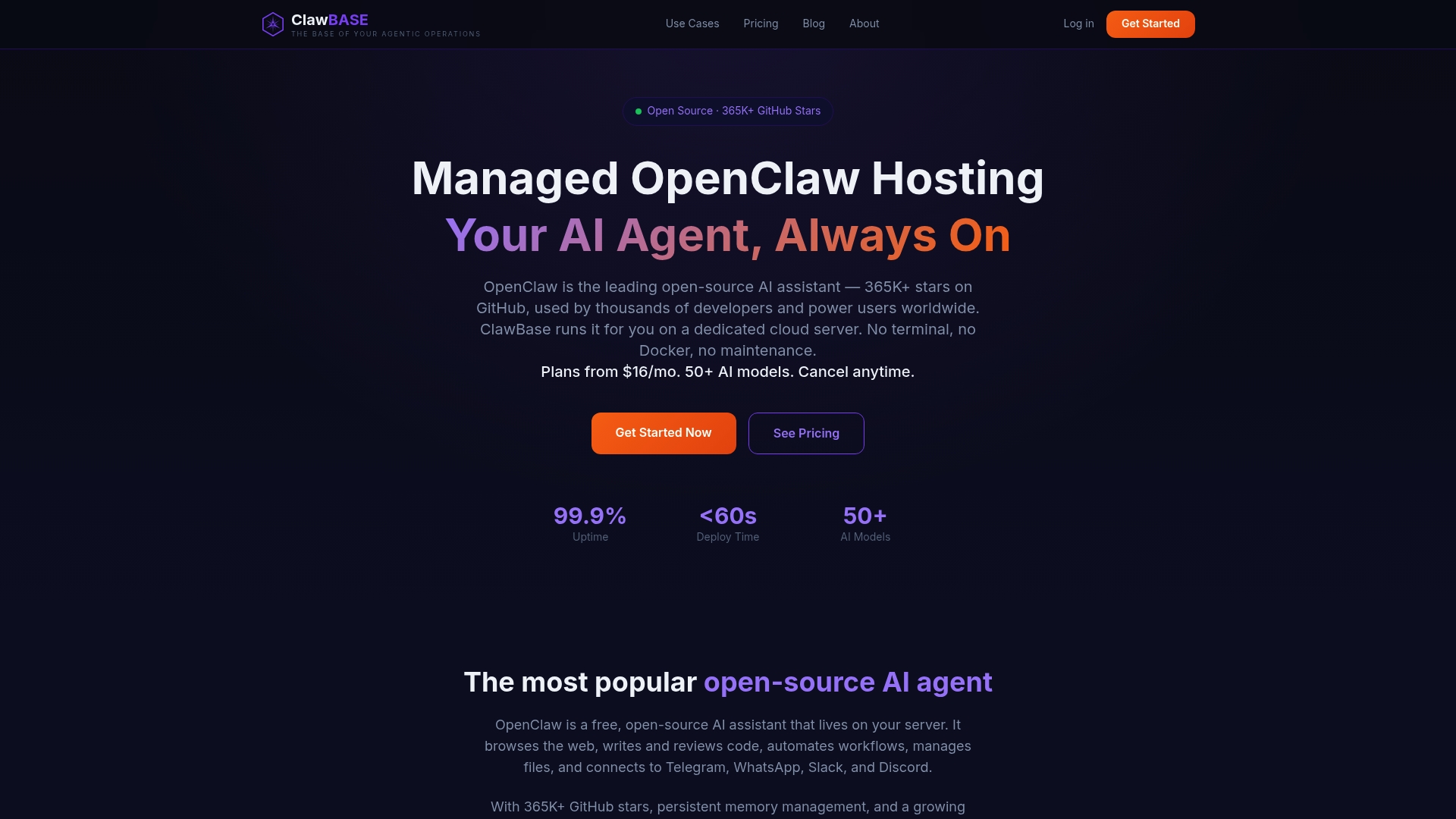
What that means in practice: you get a private, always-on AI agent with persistent memory, access to over 50 AI models, and native integrations for Telegram and Discord — without touching a terminal. Uptime is backed at 99.9%, so the assistant is there when you need it, not just when the server cooperates. For non-technical users who want the full capability of an open-source AI assistant without the infrastructure headache, Clawbase starts at $16/month. See the full use-case library to find a workflow that fits your team, then start a pilot.
Authoritative sources and further reading
These sources are worth bookmarking for deeper learning or when you need to evaluate a vendor's claims.
- NIST AI 200-1 — The U.S. government's foundational guidance on AI risk and human-AI collaboration. Read this to understand what "augmentation" means in practice and what risks to watch for.
- University of Luxembourg: The Four Types of AI Users — Defines General User, AI Power User, AI Integrator, and AI Developer. Useful for figuring out which tier you are in and what tools match your skill level.
- Google AI Essentials — A free, no-technical-background-required course covering prompting, summarization, and email drafting with hands-on exercises. The best structured starting point for absolute beginners.
- Stanford IT: AI Simplified for Non-Techies — A three-hour workshop covering practical AI applications, ethical considerations, and tool evaluation for non-technical professionals.
- AI tools for tech job seekers — Covers how general users interact with AI tools in a career context; useful background on task suitability and accessible tool options.
- Clawbase blog — Beginner-friendly guides on deploying AI assistants without coding, switching models, and building no-code workflows.