Automated File Organization: What It Is and How to Start
2026-08-18

Automated file organization is software that sorts, renames, and routes your files into the right folders based on rules or content analysis, without you dragging a single icon. The quick recommendation: if your files are simple and predictable (invoices, downloads, screenshots), start with a rule-based system that watches a folder and applies if-this-then-that logic. If you're drowning in mixed, unstructured content, like scanned contracts, research PDFs, and half-named client files, an AI or content-aware tool that reads what's actually inside each file will save you more time.
Automated organization splits into two camps: rule-based systems built on user-defined logic, and AI-based systems that read file contents for context. Research on ML-driven categorization shows the approach gets more effective as your file volume grows, which is the opposite of how most people assume automation works. You'd think a small folder of 50 files would be easier to automate than a server with 50,000. It's actually the reverse: pattern-based systems need scale to shine.
Key Takeaways
Automated file organization works best when you match the method, rule-based or AI, to how messy and voluminous your files actually are, and when you never skip preview before applying changes.
| Point | Details |
|---|---|
| Definition | Automated file organization applies rules or content analysis to sort and rename files without manual effort. |
| Choose by complexity | Rule-based fits predictable file types; AI/content-aware fits large, mixed, or unstructured collections. |
| Safety first | Always run preview or dry-run mode and keep backups before applying any batch move. |
| Privacy depends on model | Local models keep content on-device; cloud models require checking encryption and retention policies. |
| Managed option for teams | ClawBase-hosted OpenClaw offers private, backed-up file automation without requiring in-house sysadmin work. |
Table of Contents
- What Is Automated File Organization and Why Does It Matter?
- Rule-Based vs. AI: Which Approach Fits Your Files?
- How Does Automated File Organization Actually Work?
- Which Tools Handle File Organization Best?
- A Simple 3-Step Setup to Try Automated Organization
- Naming, Taxonomy, and Keeping Automation Reliable
- How Private Is AI-Based File Organization?
- What Goes Wrong With Automated File Organization?
- What Does the Research Say About AI-Based Sorting?
- Where Should You Actually Start With Automation?
- A Managed Path to Private File Automation
- Sources
What Is Automated File Organization and Why Does It Matter?
The value isn't just a tidier desktop. It's time you get back, and a search function that actually works when you need a file at 4:45 PM before a client call.
Four benefits show up consistently once people automate:
- Time savings: manual filing eats minutes daily that compound into hours monthly, especially for anyone handling client folders or recurring invoices.
- Consistent naming: a machine never gets lazy and drops the date format halfway through a project, the way humans reliably do.
- Faster search: files land in predictable locations with predictable names, so you stop hunting through five nested folders labeled "misc."
- Auditability: every move gets logged, which matters when a compliance officer or accountant asks where a document came from and when it moved.
Think about the folders that cause the most friction day to day: a Downloads folder that becomes a junk drawer, a shared invoices folder where three people use three naming conventions, a photo library that never gets tagged, or a project workspace that turns into archaeology by month three. These are exactly the use cases where automation earns its keep.
Industry teams working on content-aware systems argue the real purpose of file organization isn't cosmetic tidiness. It's creating a searchable, audit-ready environment that connects files to the projects or clients they belong to, cutting the cognitive load of remembering where you put something six weeks ago. That reframing matters: you're not organizing files for their own sake, you're organizing them so your brain doesn't have to hold the map.
Rule-Based vs. AI: Which Approach Fits Your Files?
Automated file sorting generally works one of two ways: it applies rules based on file attributes, naming patterns, and metadata, or it uses content-aware AI classification for deeper accuracy. A rule-based system asks, "Does this filename contain 'invoice' and end in .pdf?" An AI system reads the actual text inside the PDF and figures out it's an invoice from a specific vendor, even if the filename is scan0047.pdf.
Neither approach is universally better. It depends on how messy your inputs are and how much you're willing to configure upfront.
| Dimension | Rule-based systems | AI / content-aware systems |
|---|---|---|
| Best for | Personal use, predictable file types, small to mid-size collections | Large or messy collections, mixed formats, unstructured archives |
| Platforms supported | Windows, macOS, Linux (often via scripts or lightweight apps) | Windows, macOS, Linux, cloud (depends on the tool's deployment model) |
| Setup complexity | Beginner to intermediate; write or copy a rule config | Intermediate to advanced; requires choosing a model and reviewing output |
| Privacy / data handling | Entirely local, no content leaves your machine | Varies: local models keep data on-device, cloud models send content externally |
| Cost | Often free or open-source | Ranges from free open-source projects to paid cloud subscriptions |
Rule-based tools have a clear upside: they're predictable. You know exactly why a file moved, because you wrote the rule. The downside is maintenance. Every new file type or edge case means writing another rule, and rule sets tend to sprawl into spaghetti over a year or two.
AI-based tools flip that trade-off. You spend less time writing conditions and more time reviewing what the model decided. The upside is handling context that rules can't see, like distinguishing a signed contract from a draft based on the actual wording. The downside is you're trusting a model's judgment, which means you need a way to catch mistakes before they become permanent.
How Does Automated File Organization Actually Work?
Underneath the marketing language, every automated organization system follows roughly the same pipeline, whether it's a five-line script or an enterprise document management platform.
- Watch or ingest: the system monitors a folder, an inbox, or a cloud drive for new or changed files.
- Analyze: it reads metadata (file type, date, size) or, for content-aware systems, extracts and reads the actual content.
- Decide: a rule fires, or a model outputs a classification and a confidence score.
- Act: the file gets moved, renamed, tagged, or archived according to the decision.
- Log and preview: the action gets recorded, and in well-built tools, you see a preview before anything actually happens.
That last step is where most people get burned if they skip it. A basic rule config, the kind you'd write for a self-hosted tool, looks something like this:
rules:
  - name: "Sort invoices by year"
    filter:
      extension: pdf
      filename_regex: "invoice.*"
    action:
      move: "~/Documents/Invoices/{year}/"
That regex pattern (filename_regex: "invoice.*") is doing the heavy lifting: it matches any filename containing "invoice" followed by anything else, then routes the match into a folder built from the file's year. Change the regex, and you change what gets caught. Simple, but unforgiving if you get the pattern wrong.
Pro Tip: *Never run your first automation pass directly on your original files. Set the tool to preview or dry-run mode first, and keep a versioned backup of the folder you're about to touch. A misconfigured regex can silently misfile hundreds of documents before you notice, and undoing that by hand is far more painful than the ten minutes it takes to check a preview.*
Which Tools Handle File Organization Best?
Tool categories map fairly cleanly to how much control versus convenience you want.
- OS-native automations and scripts: macOS Automator, Windows PowerShell scripts, or cron jobs on Linux. Free, fully local, but require some comfort with basic scripting.
- Desktop rule apps: lightweight, self-hosted tools that let you define folder rules through a config file rather than code. Organize is a good example here. It's a self-hosted, rule-based organizer that developers and self-hosting enthusiasts favor because it keeps configuration in a readable file you can version-control, and it never phones home. It fits best when you know your file patterns and want a set-and-forget script rather than a subscription product.
- Cloud SaaS with preview: hosted tools that connect to your cloud drive, apply sorting logic, and show you a preview before committing changes. Useful for teams who don't want to manage infrastructure.
- AI-native file sorters: tools built specifically to read file content and suggest organization. The open-source AI File Sorter project demonstrates this well, offering local model analysis, rename suggestions, and a review step before anything moves, which matters if you're wary of sending files to a third-party server. Commercial options in this space, like Sortio, add toggles between metadata-only and content-aware sorting plus undo controls.
- Enterprise DMS/IDP: document management and intelligent document processing platforms built for organizations handling regulated records, contracts, or compliance-heavy archives at scale.
Platform support varies by category: scripts tend to be OS-specific, self-hosted rule apps like Organize run cross-platform if you're comfortable with a config file, and cloud-based tools work wherever a browser does.
A Simple 3-Step Setup to Try Automated Organization
You don't need to automate your entire drive on day one. Start narrow, verify the results, then expand.
- Choose scope: pick one folder, like Downloads or a single client's project folder, and decide which file types you want to include or exclude.
- Run preview: configure your rules or point your AI tool at the folder, then run it in preview or dry-run mode so you see proposed moves without committing them.
- Apply and monitor: once the preview looks right, apply the changes, then check back after a few days to catch any files that landed somewhere unexpected.
Before you flip the switch, run through this minimal checklist:
- Confirm which file types are included and which are explicitly excluded (system files, in-progress drafts, anything still open in another app).
- Test on a copy of the folder first, not the live version, if the tool doesn't have a built-in preview mode.
- Set up a backup or use a shortcut/pointer mode instead of moving originals, at least for the first few runs.
- Note today's date so you can review changes over the following week and catch mistakes early.
Naming, Taxonomy, and Keeping Automation Reliable
An automation system is only as good as the naming and folder structure it enforces. Sloppy taxonomy defeats the whole point, because you end up with perfectly automated chaos instead of manual chaos.
A few naming patterns hold up well across most use cases:
- Date-first:
2026-03-12_client-name_invoice.pdfsorts chronologically by default and avoids ambiguity about which version is newest. - Client-project:
clientname_projectname_v2.docxgroups related files together even when they land in a flat folder. - Type-tag prefix:
contract_,draft_,final_prefixes let you filter by document stage without opening anything.
On the tag-versus-folder question, folders work well for anything with a clear single home, like a project or a client. Tags work better when a file legitimately belongs in more than one context, such as a receipt that's both a "tax document" and a "Q1 expense." Over-nesting folders (five levels deep to find one PDF) is one of the most common mistakes; if you need a search bar to navigate your own folder structure, the taxonomy has failed.
| Maintenance task | Recommended frequency | Why it matters |
|---|---|---|
| Audit folder structure | Quarterly | Catches drift before taxonomy becomes unusable |
| Review AI classification queue | Weekly (early on), monthly (once stable) | Corrections improve future accuracy and catch misfiled documents |
| Verify backups | Monthly | Confirms recovery is possible if a batch move goes wrong |
| Update rule configs | As file types change | Keeps rule-based systems from silently missing new patterns |
How Private Is AI-Based File Organization?
This is where content-aware tools ask you to trust them with something rule-based systems never touch: the actual contents of your files. That trust needs to be earned, not assumed.
Local model processing keeps analysis entirely on your device. Nothing leaves your machine, which matters if your files include contracts, medical records, or anything with client-identifying information. Cloud processing, by contrast, sends file content to a remote server for analysis, which can mean faster or more capable models, but also means you're extending trust to whoever operates that server.
A short checklist for evaluating any content-aware tool before you feed it real files:
- Confirm whether processing happens locally or in the cloud, and read the privacy policy rather than assuming.
- Check for encryption both at rest and in transit if any data does leave your device.
- Look for access controls and audit logs, especially for shared or team folders.
- Ask about retention policies: does the provider keep a copy of your content after processing, or discard it immediately?
Pro Tip: *If privacy is a hard requirement, prioritize tools with documented local-model or offline support, and where cloud models are unavoidable, look for a bring-your-own-key (BYOK) option so you control which model provider actually sees your content. Preview-only modes also help here, since you can inspect what the AI extracted before deciding whether you're comfortable with it touching sensitive files at all.*
What Goes Wrong With Automated File Organization?
Automation fails in fairly predictable ways, which is good news: predictable failures are fixable.
- Incorrect rules: a regex that's slightly too broad catches files it shouldn't, or too narrow and misses the ones it should.
- False-positive AI classifications: content-aware tools occasionally misread context, tagging a draft as final or a personal document as work-related.
- Split files: multi-part archives or paired files (like an image and its sidecar metadata file) sometimes get separated when only one half matches a rule.
- Filename collisions: two files renamed to the same pattern in the same folder, with one silently overwriting the other if the tool doesn't handle duplicates.
The fix for nearly all of these is structural, not reactive: keep preview and rollback available at every stage, maintain logs of every automated action, and where possible, use a shortcut or pointer approach rather than physically moving original files. A whitelist approach, only processing file types and folders you've explicitly approved, cuts down on surprises. Running incrementally, a few dozen files at a time rather than your entire archive in one pass, also makes mistakes easier to spot and cheaper to reverse.
What Does the Research Say About AI-Based Sorting?
Academic and industry work on this topic has moved past theory into working prototypes, and the findings are worth knowing before you pick a tool.
Research on content-based classification systems shows that LLM-based semantic summaries and tag generation produce interpretable results that go beyond what filename metadata alone can offer, meaning the system can explain, in plain language, why it classified a file a certain way rather than just spitting out a folder path. Separately, studies combining supervised and unsupervised learning for file categorization find that effectiveness improves as dataset size grows, cutting the manual effort required as the archive scales.
> Automated, ML-based categorization becomes more effective as file volume increases, which runs counter to the assumption that automation is only worth it for large operations. Smaller collections often see the least benefit from AI-based sorting precisely because there isn't enough pattern data for the model to learn from.
| Method | Claimed accuracy behavior | Scalability | Privacy trade-off |
|---|---|---|---|
| Rule-based | Consistent, but only as accurate as the rules written | Doesn't improve with volume; requires manual rule updates | Fully local, no content exposure |
| AI / content-aware (local model) | Improves with content diversity and correction feedback | Scales well with volume, per research on categorization | Local processing, no external exposure |
| AI / content-aware (cloud model) | Often highest raw accuracy due to larger models | Scales well, limited by API cost and rate limits | Content sent externally unless BYOK or encryption controls apply |
Where Should You Actually Start With Automation?
Here's the honest read on all of this: most people over-engineer their first attempt at automation.

Start small. Pick one folder, one clear pattern, and get a rule-based setup working with preview and rollback before you ever touch a content-aware tool. Once you've lived with that for a few weeks and you can see exactly where rules break down, mixed file types, ambiguous content, documents that don't follow any naming convention, that's your signal to layer in AI. Not before.
For individuals, that might mean stopping there entirely. But for teams handling shared client files, compliance-sensitive documents, or archives too large to review by hand, the calculus changes. You want automation that's private by default, that doesn't require someone on staff to babysit a server, and that still gives you audit logs and preview controls. That's the gap managed private AI assistants like ClawBase-hosted OpenClaw setups are built to fill: a persistent, private agent that can handle file management tasks without exposing your team to the sysadmin overhead of running your own AI infrastructure.
The tools matter less than the discipline you bring to using them. Preview before you apply. Back up before you automate. Scale up complexity only when your current setup has actually shown its limits.
A Managed Path to Private File Automation
If you've read this far and the idea of running your own AI model locally, or trusting a cloud tool with sensitive documents, feels like more infrastructure than you signed up for, there's a middle path. ClawBase gives you a private, always-on AI assistant hosted on a dedicated, encrypted server, with none of the sysadmin work that self-hosting an AI agent normally demands.
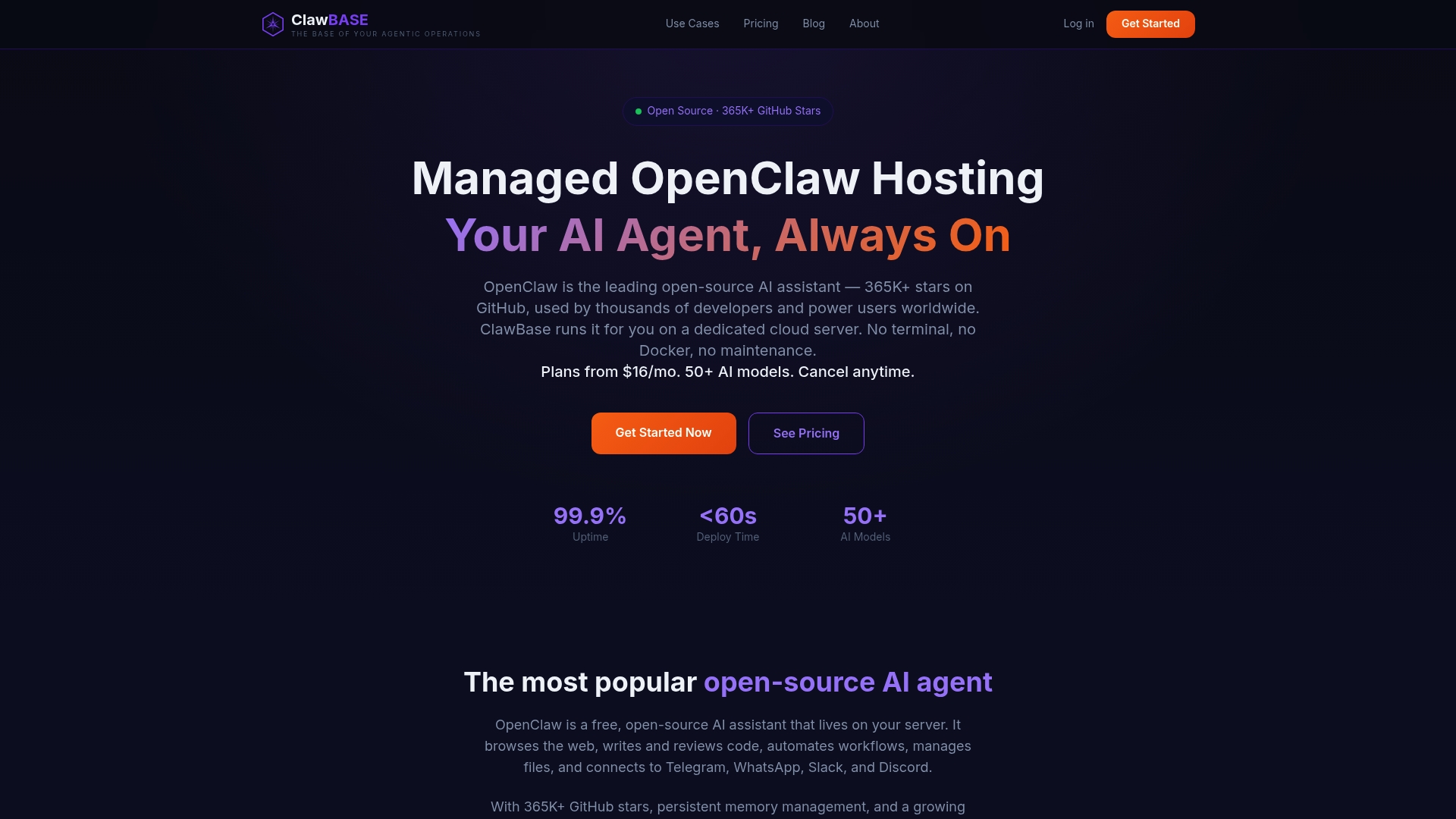
Instead of stitching together scripts, local models, and preview tools yourself, ClawBase deploys OpenClaw with one click, and the assistant handles file management alongside broader workflow automation, connecting to Telegram, Discord, Slack, and WhatsApp so it fits into however your team already works. Daily encrypted backups mean a bad automation run isn't a data-loss event.
If safe, private, hands-off file organization is what you're after, the 7-day free trial is the fastest way to see whether a managed OpenClaw agent fits your workflow, and the setup tutorial walks you through configuring your first automated tasks in under an hour.
Sources
- AI File Organization: The Complete Guide to Automatic File Management
- Content-based File Classification and Organization System (CFCOS)
- How to Set Up an Automated File Organization System (Step by Step) | File Arbor
- Automated file categorization using supervised and unsupervised learning (TechScience CMC)