Five Minute OpenClaw Docker Setup With GHCR Images and Sandbox Tips
2026-09-12
Yes, OpenClaw runs in Docker, and the fastest supported path is the official ./scripts/docker/setup.sh script paired with a pinned image from ghcr.io/openclaw/openclaw. Set OPENCLAW_IMAGE to a tagged release, run the script, and you have a working gateway in minutes. Docker buys you isolation and repeatability; the tradeoff is a thinner ops layer you now own yourself, from firewalls to backups.
***
> TL;DR:
>
> - Using pre-built GHCR images is recommended for most deployments due to faster setup, lower memory requirements, and guaranteed provenance.
> - The setup script requires Docker Compose v2, at least 6 GB of RAM for local builds, and host directories owned by UID 1000 for smooth operation.
> - Persistent data should be stored on the host via bind mounts or named volumes, especially for critical configuration, credentials, and logs.
> - Enabling agent sandboxing in Docker offers security benefits but requires careful configuration of Docker socket permissions and host network restrictions.
> - Upgrading is safest when backing up configuration and using specific version tags, avoiding floating tags like "latest" for predictable, repeatable deployments.
***
Table of Contents
- Prerequisites Before You Dockerize OpenClaw
- How Do You Run the OpenClaw Docker Setup Script?
- Should You Use Pre-Built GHCR Images or Build Locally?
- What Data Persists Across Container Restarts?
- Is Agent Sandboxing Safe to Enable in Docker?
- What Do openclaw-gateway and openclaw-cli Actually Do?
- How Do You Upgrade OpenClaw Running in Docker?
- Common OpenClaw Docker Errors and Quick Fixes
- Self-Hosting in Docker vs. Managed Hosting: My Take
- A Faster Way to Run OpenClaw Without Managing Containers
- Where to Verify the Docker Setup Details Yourself
- Sources
- FAQ
Prerequisites Before You Dockerize OpenClaw
Before touching the setup script, confirm your environment can actually support it. OpenClaw's Docker path assumes Docker Desktop or Docker Engine with Docker Compose v2 already installed, not the legacy standalone docker-compose binary.
- Docker Engine or Docker Desktop with the
docker composeplugin (v2), not the old hyphenated binary - Roughly 6 GB of RAM if you plan to build the gateway image locally from source
- Enough free disk space for images, build layers, and ongoing logs (a few gigabytes is a safe floor)
- Host directories owned by uid 1000, since the container runs as a non-root
nodeuser - Git installed, plus a clone of the
openclaw/openclawrepository
Skip the local build and pull a pre-built GHCR image instead, and the RAM requirement mostly disappears.
How Do You Run the OpenClaw Docker Setup Script?
The maintained setup script is the difference between an afternoon of manual Compose wiring and a five-minute install. Clone the repository, optionally point at a specific image tag, then hand the rest to the script.
git clone https://github.com/openclaw/openclaw.git && cd openclawexport OPENCLAW_IMAGE=ghcr.io/openclaw/openclaw:latest(optional, skip to build locally instead)./scripts/docker/setup.sh- Answer the onboarding prompts, or automate them with
OPENCLAW_SKIP_ONBOARDING=1for unattended runs - Confirm the stack is healthy
Pro Tip: *Run the setup script once interactively on a throwaway box first. It generates the .env file and gateway token, so you can copy those values into an automated deployment later instead of guessing at the format.*
The script does more than launch containers. It creates your OPENCLAW_CONFIG_DIR and workspace directories on the host, writes the .env file, generates an initial gateway authentication token, walks you through onboarding, and then either builds the image or pulls it before starting services through docker compose. For fleets or CI pipelines, environment variables like OPENCLAW_SKIP_ONBOARDING let you bypass the interactive prompts entirely.
Once it finishes, validate the deployment:
docker compose ps
docker compose logs -f openclaw-gateway
curl http://127.0.0.1:18789/healthz
A clean healthz response means the gateway is live and ready for channel connections.
Should You Use Pre-Built GHCR Images or Build Locally?
Pulling from ghcr.io/openclaw/openclaw is the path most deployments should take, and it's what the official docs recommend for production. GHCR images ship through OpenClaw's release automation, which means provenance checks you don't get from an ad hoc local build, and they install in a fraction of the time a source build takes.
- Pre-built GHCR images: fast to pull, lower memory footprint during setup, backed by release automation, and available in tagged versions plus
latest - Local builds (
openclaw:local): useful when you're actively developing against source, but they demand the full ~6 GB RAM build budget and can fail with an out-of-memory error on constrained hosts - Key environment variables:
OPENCLAW_IMAGEselects the image source,OPENCLAW_HOME_VOLUMEcontrols where the home directory persists,OPENCLAW_EXTRA_MOUNTSadds bind mounts,OPENCLAW_SANDBOXtoggles agent sandboxing, andOPENCLAW_SKIP_ONBOARDINGbypasses interactive setup - Offline installs: use
docker loadto import an image tarball, then run the setup script with an--offlineflag for airgapped environments
Slim and browser variants also exist. Grab the -browser tag if your agents need a baked-in Chromium for sandboxed browser automation.
What Data Persists Across Container Restarts?
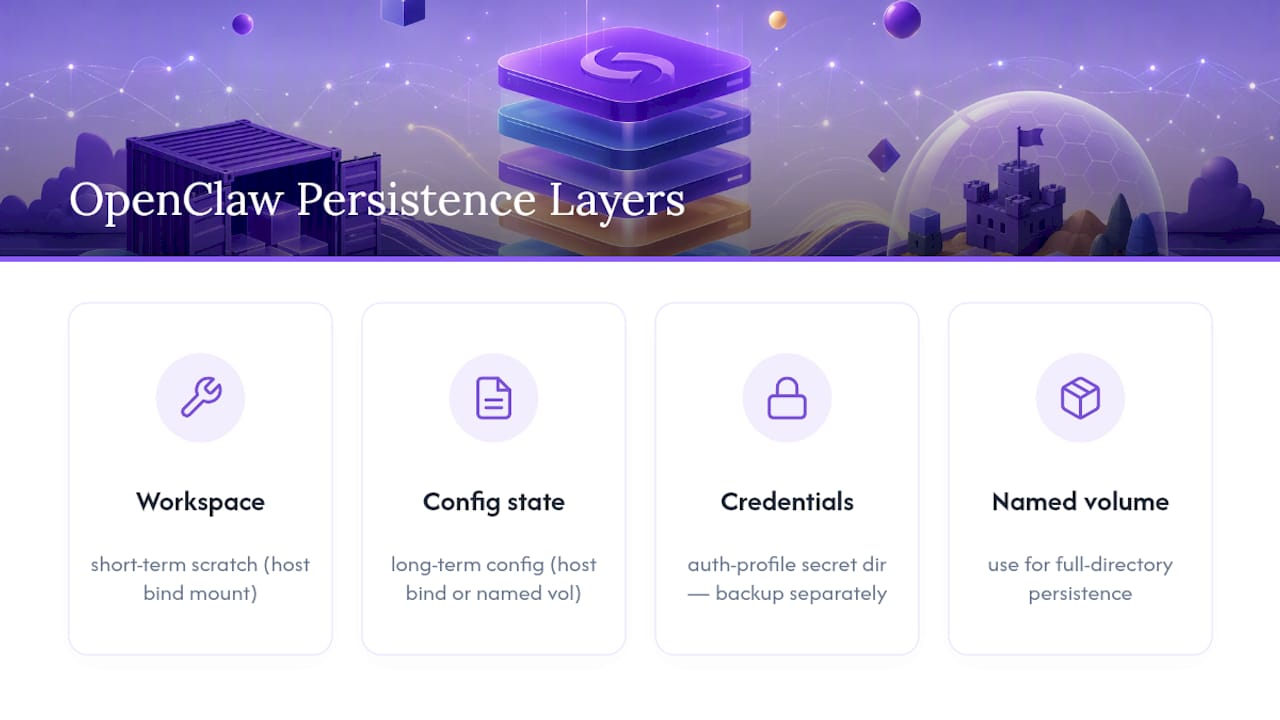
Containers are disposable by design, so anything that matters has to live on the host, not inside the container's writable layer. OpenClaw's Compose setup pins container-side paths so your bind mounts land in the right place every time.
Think of these three mounts as the equivalent of separate memory layers in a human brain: short-term workspace scratch, long-term config state, and a locked vault for credentials. If you need the full /home/node directory to persist reliably across image upgrades, use a named volume rather than a loose bind mount. Back up the auth-profile secret directory on its own schedule since it holds channel logins and model credentials. If you hit EACCES errors, the fix is almost always chown -R 1000:1000 on the host path.
Is Agent Sandboxing Safe to Enable in Docker?
Sandboxing is worth enabling if your agents execute arbitrary code or shell commands, but it comes with a real tradeoff: the gateway container needs the ability to spawn sibling containers, which means touching the Docker socket. Set OPENCLAW_SANDBOX=1 and the setup script mounts docker.sock only after it confirms the Docker CLI and other sandbox prerequisites actually pass, resetting sandbox mode off automatically if they don't.
- Never expose
docker.sockto a container you don't fully trust, sandboxed or not - Set
DOCKER_GIDto match the host's Docker group so sibling containers get correct permissions - The gateway drops
NET_RAWandNET_ADMINcapabilities and enablesno-new-privilegesby default - For a VPS or cloud host, restrict ports
18789and18790with a provider firewall or reach the gateway only through an SSH tunnel
Pro Tip: *Use "loopback" bind mode for anything you manage over SSH, and reserve "lan" binding only for trusted internal networks. Public exposure of the gateway port is the single most common self-inflicted wound in Docker-based OpenClaw deployments.*
What Do openclaw-gateway and openclaw-cli Actually Do?
The two Compose services split cleanly by lifecycle. openclaw-gateway is the long-lived process that listens on your configured ports and holds the live agent state. openclaw-cli is deliberately ephemeral, an admin runner you invoke on demand rather than a service you leave running.
- Run onboarding again or reset config:
docker compose run --rm openclaw-cli onboard - Log in a messaging channel:
docker compose run --rm openclaw-cli channels login - Diagnose the stack:
docker compose run --rm openclaw-cli doctor --json
Notice the --rm flag in every example. The CLI container shares the gateway's network namespace through network_mode: service:openclaw-gateway, which is why it can reach 127.0.0.1:18789 without any extra networking setup. If the gateway doesn't come up, docker compose logs combined with the healthcheck hitting /healthz will usually tell you exactly where it stalled.
How Do You Upgrade OpenClaw Running in Docker?
Upgrading is safe as long as you back up state first and pin your image tag deliberately rather than floating on latest in production.
- Source-built setups:
git pull --ff-only, then rerun withOPENCLAW_SKIP_ONBOARDING=1 ./scripts/docker/setup.shto rebuild without repeating onboarding - Pre-built image setups: update
OPENCLAW_IMAGEto the new tag or digest, then rerun the setup script - Pin specific version tags instead of
latestif you need predictable, repeatable deployments - After any upgrade, verify with
docker compose run --rm openclaw-cli doctor --json, check/healthz, and scan the logs - Back up
OPENCLAW_CONFIG_DIRand the auth-profile secret directory before any major version jump
Common OpenClaw Docker Errors and Quick Fixes
Most Docker problems with OpenClaw fall into a small handful of repeat offenders.
- Exit code 137 during build: this is an out-of-memory kill, not a bug. Increase the build host's RAM or switch to a pre-built GHCR image instead of building from source.
- Permission errors (
EACCES) on/home/node/.openclaw: the host directory isn't owned by uid 1000. Runsudo chown -R 1000:1000on the mounted path. - "docker compose" command not found: you likely have the old standalone
docker-composebinary. Install the Compose v2 plugin instead. - Sandbox mode silently fails to enable: check that
DOCKER_GIDis set correctly, or setOPENCLAW_DOCKER_SOCKETexplicitly if you're running rootless Docker.
Self-Hosting in Docker vs. Managed Hosting: My Take
If you like owning the stack, tuning Compose files, and treating your gateway as a live experiment, self-hosting in Docker is the right call. You get full control over image versions, sandbox behavior, and mount layout.
But if your actual goal is a reliable assistant your team can depend on, not a side project in container orchestration, the ops tax adds up fast: backups, port hardening, upgrade discipline, uid permissions. That's the gap managed hosting is built to close.
> *— Iosif Peterfi*
A Faster Way to Run OpenClaw Without Managing Containers
Clawbase is the alternative to running your own Docker stack when what you actually want is a working AI assistant, not a container-management project. Instead of chasing EACCES errors or babysitting docker compose logs at 11 p.m., you get one-click deployment on a dedicated, encrypted server with 99.9% uptime and daily encrypted backups already handled.
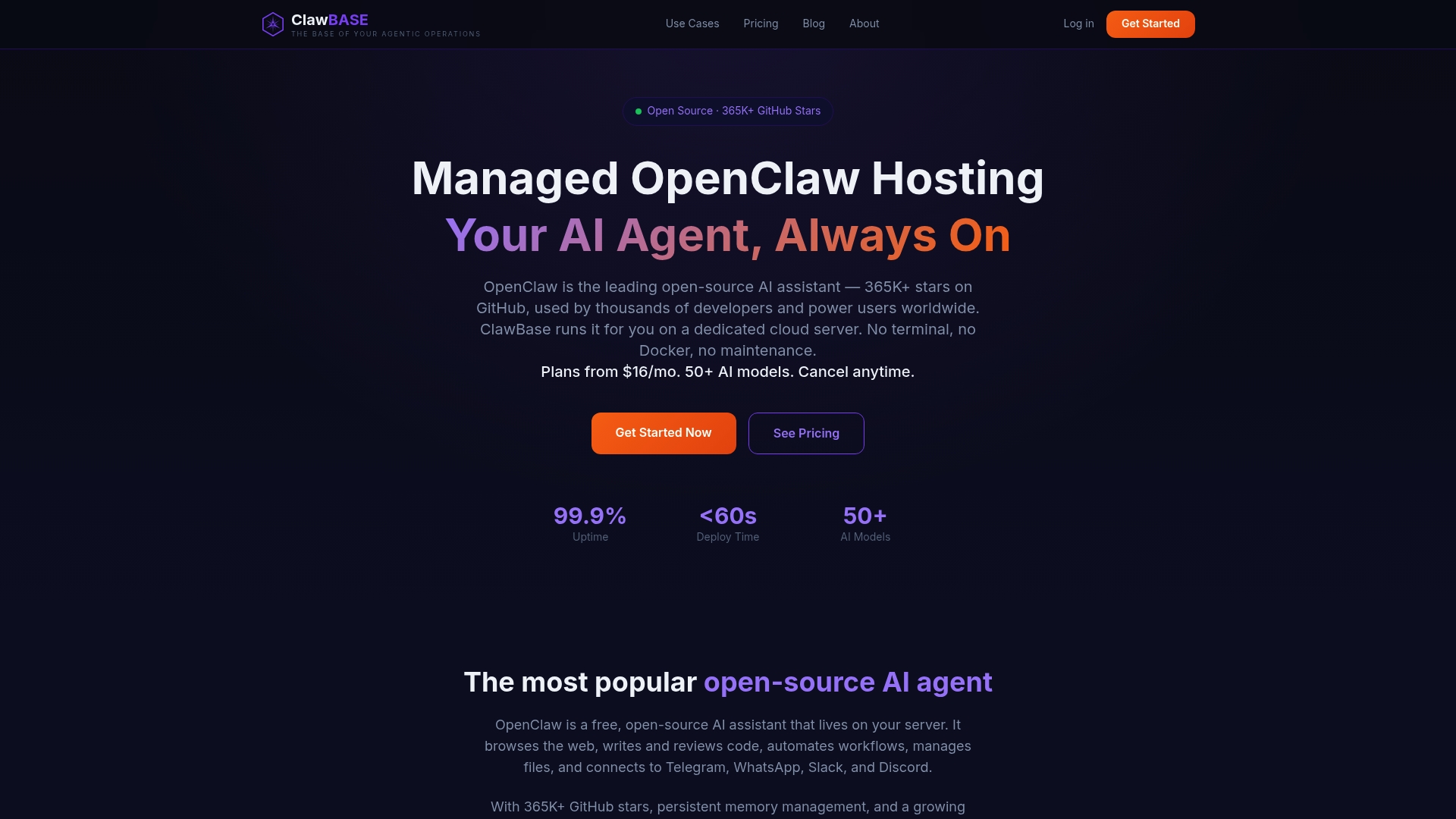
This managed hosting includes persistent memory management, access to many AI models with multi-model routing, and native connections to popular messaging platforms, all without manual file or volume configuration. This solution appeals to developers and non-technical teams who prefer avoiding infrastructure management and permission issues. Check out the ClawBase quickstart or start a trial directly on ClawBase to see how quickly a managed instance comes online.
Where to Verify the Docker Setup Details Yourself
The commands, environment variables, and security defaults in this guide come straight from OpenClaw's own maintained sources.
- Official Docker install guide — prerequisites, image tags, and sandbox behavior
- docker-setup.sh in the repository — the exact automation logic
- docker-compose.yml in the repository — ports, healthchecks, and security options
- Docker VM runtime guide — production hardening and troubleshooting
Sources
- Docker - OpenClaw (official docs)
- docker-setup.sh — openclaw/openclaw (repo)
- docker-compose.yml — openclaw/openclaw (repo)
- Docker VM runtime — openclaw/openclaw (docs)
FAQ
Can OpenClaw Run on Docker?
Yes. OpenClaw ships an official setup script and pre-built images on GHCR specifically for Docker-based installs, and the docs treat Docker as an optional but fully supported path.
Is Docker Basically a Virtual Machine?
No. Docker containers share the host's kernel and isolate processes at the OS level, while a VM virtualizes an entire separate operating system, which makes containers lighter and faster to start.
What Can You Run OpenClaw On?
OpenClaw runs natively on a development machine for the fastest local dev loop, inside Docker for isolated or throwaway gateways, or on a managed platform like Clawbase if you want the assistant running without handling the infrastructure yourself.
Do I Need to Build the Image Myself?
Not usually. Pulling a tagged release from ghcr.io/openclaw/openclaw is faster, uses less memory, and carries the provenance of OpenClaw's own release automation compared to a local build.
What Ports Does the OpenClaw Gateway Use?
The gateway listens on ports 18789 and 18790 by default, and those should stay behind a firewall or SSH tunnel on any VPS or cloud deployment rather than exposed to the public internet.