Common Open-Source AI Setup Errors: 2026 Fix Guide
2026-06-03

Common open-source AI setup errors are configuration, compatibility, and runtime failures that prevent tools like LocalAI, vLLM, and Ollama from deploying or running correctly. These failures span six distinct categories: installation, model loading, GPU and memory, API connection, Docker, and network issues. Most developers hit at least two or three of these categories in a single deployment session, which is why quick diagnostics before config changes are the highest-leverage first step you can take. This guide covers the most frequent setup errors in open-source AI deployments, their root causes, and the specific fixes that actually work in 2026 environments.
1. Common open-source AI setup errors: exec format and binary mismatch
Exec format errors are the most disorienting open-source AI installation problems because they look like a corrupt download but are actually an architecture mismatch. When you pull an x86_64 binary and run it on an ARM64 machine, or vice versa, the kernel rejects execution immediately with "Exec format error`. This is especially common when Docker images are built on AMD64 CI pipelines and then deployed to ARM-based cloud instances or Apple Silicon Macs.
The fix is not to re-download the binary. The fix is to confirm your target architecture with uname -m and then pull or build the correct variant. For Docker, always specify --platform linux/arm64 or --platform linux/amd64 explicitly in your docker pull or docker build command. Leaving platform selection to auto-detection is a reliable source of pain.
- Run
fileto confirm the ELF architecture before executing - Use multi-arch manifests only when you have verified the registry supports them
- For llama.cpp, build from source with the correct
LLAMA_METAL=1flag on Apple Silicon rather than using prebuilt releases
Pro Tip: *On macOS, Gatekeeper quarantine blocks unsigned binaries with a misleading "cannot be opened" error. Run xattr -d com.apple.quarantine to clear the quarantine attribute before assuming the binary is broken.*
2. Toolchain incompatibilities and failed builds on Apple Silicon
Installer pipelines that mis-detect platform architecture cause build failures that are difficult to trace because the error appears deep in the compiler output, not at the install command. On Apple Silicon M-series chips, tools like Unsloth and llama.cpp have historically received incorrect x86_64 compiler flags from automated installers, causing the build to fail at the linking stage.

Deterministic builds with explicit architecture pinning prevent this class of error entirely. Rather than relying on pip install to detect your platform, pass architecture flags manually and verify the resulting binary with file or otool -hv. For llama.cpp on arm64 Macs, the correct build command includes LLAMA_METAL=1 make to enable Apple Metal GPU acceleration. Skipping that flag produces a CPU-only binary that runs but performs at a fraction of expected speed, which is its own category of silent failure.
The broader lesson here is that deterministic build processes with architecture pinning are superior to trusting auto-detection in any open-source AI installer. Treat every installer as a black box until you have verified the output binary.
3. CUDA version mismatches and GPU kernel errors
vLLM deployments frequently face CUDA wheel and NVIDIA driver mismatches that produce the error no kernel image is available for execution on the device. This error means the compiled CUDA kernel in your PyTorch or vLLM wheel does not match the compute capability of your physical GPU or the CUDA runtime version installed on the host.
The correct resolution sequence is:
- Run
nvidia-smito confirm your installed driver version and the maximum CUDA version it supports - Run
nvcc --versionto check the CUDA toolkit version - Cross-reference both against the vLLM compatibility matrix to identify the correct wheel
- Install the matching PyTorch build using the index URL from pytorch.org, specifying the exact CUDA version (e.g.,
cu121for CUDA 12.1) - Reinstall vLLM from the matching wheel rather than the generic PyPI release
> Pinning compatible CUDA, PyTorch, and AI framework wheel versions is consistently more effective than running generic driver reinstall loops. A driver reinstall changes the ceiling; a wheel mismatch means you are building against the wrong floor entirely.
This applies equally on Ubuntu 22.04, Ubuntu 24.04, and Windows with WSL2. On macOS, the equivalent issue is Metal API version mismatches with MLX or Core ML backends, which require matching the framework version to the macOS release.
4. Docker GPU injection failures and NVML errors
Failed to initialize NVML inside a Docker container is one of the most misdiagnosed common AI deployment mistakes. Developers assume the GPU driver is broken, reinstall it, and reproduce the same error. The actual cause is almost always the container device injection method, not the driver itself.
Using --gpus=all instead of --runtime=nvidia causes intermittent GPU access loss, particularly after systemctl daemon-reload commands that reset cgroup driver state. The NVIDIA Container Toolkit recommends --runtime=nvidia for stable GPU injection in long-running containers. Switching the flag resolves the error without touching the driver.
The deeper issue is that runtime GPU injection errors are container runtime and systemd cgroup driver configuration problems, not hardware faults. Treating them as hardware faults wastes hours. Verify your /etc/docker/daemon.json includes "default-runtime": "nvidia" if you want GPU access without specifying the flag on every docker run command.
5. Model not found and corrupted file load failures
HTTP 404 model not found errors in LocalAI and Ollama are almost always caused by one of two things: the model name in the API request does not match the name registered in the server, or the model file was never fully downloaded. Both are fixable in under two minutes once you know where to look.
- Call the
/modelsendpoint (e.g.,http://localhost:8080/v1/models) to list what the server actually has loaded before changing any config - Compare the model name in your request exactly, including case and version suffix, against the listed name
- For Ollama, run
ollama listto confirm the model is present andollama pullto re-fetch if the file is incomplete - Check file size against the expected size from the model registry. A 4GB GGUF file that downloaded as 1.2GB will load silently and then crash or produce garbage output
Backend-model format mismatches are a related failure. Pointing a llama-cpp backend at a GGML-format file instead of a GGUF-format file produces a load error that looks like a missing file. LocalAI categorizes these as backend mismatches and recommends verifying the backend configuration against the model format before assuming the file is corrupt.
Pro Tip: *Always use the /health or /readyz endpoint to confirm the server is fully initialized before sending model requests. A server that is still loading models returns 503, not 404, and that distinction tells you exactly where the problem is.*
6. API connection refused and port conflict errors
Connection refused errors on Ollama's default port 11434 mean the server daemon is not running, not that the port is blocked. Developers frequently jump to firewall rules or port forwarding when the fix is simply running ollama serve in a terminal or confirming the service is active with systemctl status ollama.
Port conflicts are the second cause. If another process has bound to port 11434 or 8080, the AI server fails silently on startup and the log entry is easy to miss. Run lsof -i :11434 on Linux or macOS to identify what is holding the port, then either stop that process or reconfigure the AI server to use a different port via its environment variable (OLLAMA_HOST=0.0.0.0:11500, for example).
7. Slow inference caused by CPU-only execution
Slow token generation, typically under 5 tokens per second for a 7B model, is the clearest symptom of CPU-only execution when a GPU is available. Enabling GPU offloading can push generation rates from roughly 5 to 30 or more tokens per second. That is a 6x improvement from a single environment variable change.
For Ollama, set OLLAMA_GPU_LAYERS to a high value (e.g., 99) to offload as many transformer layers as VRAM allows. For llama.cpp directly, use the -ngl flag to specify the number of GPU layers. If VRAM is limited, offloading 20 to 30 layers still produces a significant speedup over pure CPU execution. The goal is to push as much of the computation onto the GPU as your hardware supports.
8. Out-of-memory crashes and quantization selection
Out-of-memory errors are caused by insufficient RAM for the model size, not by hardware failure. A 13B model in Q8_0 quantization requires roughly 13GB of RAM. The same model in Q4_K_M requires approximately 7GB. Choosing the right quantization level is the primary lever for fitting a model into available memory.
- Q4_K_M is the standard starting point for memory-constrained deployments. It offers a good balance of quality and size reduction.
- Q8_0 preserves more precision and is appropriate when you have headroom and want output closer to the full-precision model
- Q2_K and Q3_K_S are available for very constrained environments but produce noticeably lower output quality
- Closing background applications before loading a large model frees system RAM and reduces the chance of an OOM kill
If you are still hitting OOM errors after switching quantization, reduce the context size (num_ctx in Ollama model files) from the default 4096 to 2048. Context window memory scales with model size and is a common overlooked contributor to memory pressure.
9. Garbled output from wrong model variant
Garbled or nonsensical output results from running a base language model instead of an instruct or chat fine-tuned variant. Base models are trained to predict the next token in a document, not to respond to instructions. Sending a chat prompt to a base model produces output that looks like a continuation of your prompt rather than a response to it.
The fix is straightforward: always use the instruct or chat variant of a model for conversational or instruction-following tasks. In LM Studio and Ollama, model names that include instruct, chat, or it (instruction-tuned) in their identifier are the correct choice. The base model variant, often labeled simply with the parameter count and quantization, is for fine-tuning workflows, not inference.
Early truncation is a related output quality issue. If responses cut off mid-sentence, increase num_predict in your model parameters. The default value in some configurations is 128 tokens, which is too short for most practical responses.
***
Key takeaways
Fixing open-source AI setup errors requires targeting the specific failure layer: architecture, GPU runtime, model format, or server state. Broad reinstalls rarely solve the problem and always cost time.
| Point | Details |
|---|---|
| Diagnose before reinstalling | Check health endpoints and list loaded models before changing any configuration. |
| Pin your CUDA and wheel versions | Match vLLM, PyTorch, and CUDA versions explicitly using `nvidia-smi` output as your reference. |
| Use `--runtime=nvidia` in Docker | Switching from `--gpus=all` to `--runtime=nvidia` resolves most NVML initialization failures. |
| Match model variant to task | Use instruct or chat model variants for inference. Base models produce incoherent output for chat tasks. |
| Quantization controls memory use | Q4_K_M is the practical default for memory-constrained deployments without significant quality loss. |
***
What I have learned from debugging these setups repeatedly
I have spent a lot of time inside broken AI deployment environments, and the pattern I keep seeing is that developers treat setup errors as hardware problems when they are almost always software configuration problems. The NVML error is the clearest example. Every time I see someone post about it, the first response is "reinstall your drivers." That is almost never the right answer. The right answer is to check your Docker runtime flag, which takes 30 seconds.
The second pattern is version pinning avoidance. Developers want to use the latest everything, so they install the newest PyTorch, the newest vLLM, and whatever CUDA version came with the distro. Those three things are rarely compatible with each other at the same time. I now treat version compatibility matrices as mandatory reading before any new deployment, not optional documentation.
The model variant mistake is the one that surprises people most. You download a 7B model, load it, send a prompt, and get back what looks like a fever dream. The model is not broken. You just grabbed the base weights instead of the instruct-tuned version. It is an easy mistake because model registries like Hugging Face list both variants in the same repository, and the naming conventions are not always obvious.
My actual recommendation for 2026: build a personal deployment checklist that covers architecture verification, CUDA version pinning, Docker runtime flag, model variant confirmation, and a health endpoint check. Run it before every new deployment. You will eliminate 80% of the errors in this article before they happen.
> *— Iosif Peterfi*
***
Skip the setup errors entirely with Clawbase
Every error in this article represents time you could spend building instead of debugging. Clawbase exists precisely to remove that friction. With one-click OpenClaw deployment on a dedicated server, Clawbase handles CUDA compatibility, GPU runtime configuration, model loading, and uptime so you never encounter these failures in the first place.
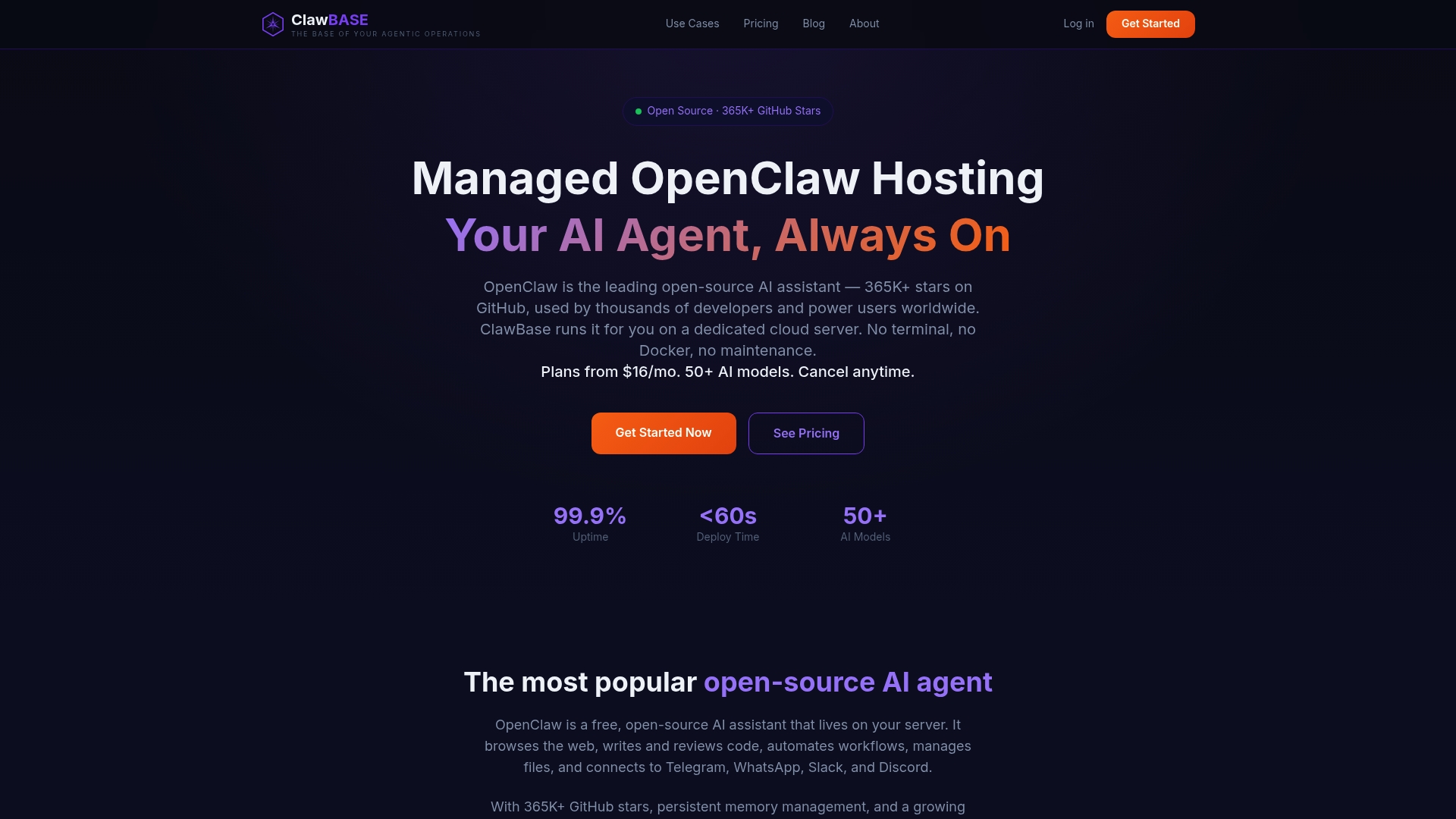
Clawbase gives you access to over 50 AI models, persistent memory management, and integrations with Telegram and Discord out of the box. No driver pinning, no Docker runtime flags, no architecture mismatches. If you want to see what a correctly configured AI deployment looks like before committing, the pricing and use cases pages lay out exactly what is included at each tier.
***
FAQ
What causes "exec format error" in open-source AI tools?
Exec format errors occur when a binary compiled for one CPU architecture (e.g., x86_64) is executed on a different architecture (e.g., ARM64). Confirm your architecture with uname -m and pull or build the matching binary.
How do I fix "no kernel image is available" in vLLM?
This error means your vLLM or PyTorch wheel was compiled for a different CUDA version than your driver supports. Run nvidia-smi to find your driver's maximum CUDA version, then install the matching PyTorch and vLLM wheels from the official compatibility matrix.
Why does my Ollama API return "connection refused"?
The Ollama server daemon is not running. Start it with ollama serve and verify it is active before sending API requests. If the port is already in use, identify the conflicting process with lsof -i :11434 and resolve the conflict.
Why is my model generating garbled or nonsensical output?
You are likely running a base model variant instead of an instruct or chat fine-tuned variant. Base models produce document continuations, not instruction responses. Switch to the instruct or it labeled version of the same model.
How do I speed up slow token generation in local AI deployments?
Slow generation (under 5 tokens per second for a 7B model) indicates CPU-only execution. Enable GPU offloading by setting OLLAMA_GPU_LAYERS=99 for Ollama or using the -ngl flag in llama.cpp to push transformer layers onto your GPU.