OpenClaw Migration: Move to a New Server Without Losing Data
2026-11-03

Migrating OpenClaw comes down to four moves: stop the Gateway on the old machine, create a verified backup archive, restore it into a staging directory on the new machine, and run openclaw doctor before you restart. Do those in order and your config, credentials, conversation history, channel logins and workspace files come along. Skip the stop-and-verify step and you risk a half-working agent that has forgotten everything. This guide walks through the whole process, including the mistakes that cause lost data and what changes if your destination is managed hosting instead of another VPS.
TL;DR
- Back up the whole state directory (usually
~/.openclaw/) and your workspace, never justopenclaw.json. - Stop the Gateway first, then run
openclaw backup create --output ~/Backups/openclaw --verify, per the official migration guide. - Restore to a fresh staging directory on the new machine, run
openclaw doctor, restart, and check status, channels, sessions and workspace files. - Use the same profile and state-directory path on both sides, and check file ownership.
- Moving to managed hosting removes the server work, so the migration is mostly about bringing your workspace and reconnecting channels.
Table of Contents
- What actually has to move
- Before you touch anything: a pre-flight checklist
- Step 1: Stop the Gateway and create a verified backup
- Step 2: Transfer the archive and restore to staging
- Step 3: Run doctor, restart, and verify
- Common ways migrations lose data
- Migrating to managed hosting
- Perspective
- Skip the server work: managed OpenClaw
- FAQ
- Sources
What actually has to move
An OpenClaw install is more than a config file. The official guide lists what a complete move covers: the config and gateway settings, auth stores, sessions, channel state and workspace files. Broken out:
- Config:
openclaw.jsonand all gateway settings. - Auth: shared and per-agent SQLite auth stores holding API keys and OAuth tokens, plus any channel or provider state under
credentials/. - Sessions: conversation history and agent state.
- Channel state: your WhatsApp login, Telegram session and similar.
- Workspace files:
MEMORY.md,USER.md, skills and prompts.
Think of it as a stack. The config says how the agent behaves, the auth layer says who it can talk to, the sessions and memory files say what it knows about you, and the channel state says where it lives. Lose any layer and the agent still starts, but it behaves like a new install. That is why a copy of openclaw.json alone is the most common way to "migrate" and the most common way to lose everything else.
Before you touch anything: a pre-flight checklist
Ten minutes of preparation prevents most failed migrations.
- Note your profile. If you run multiple profiles, the backup command has to be run once for each selected profile, per the migration guide.
- Record the state directory path. Run
openclaw statuson the old machine and write down where the state lives. A different path on the new machine is a classic source of an agent that boots empty. - Check versions. Install the same OpenClaw release on the new machine, or one you intend to upgrade to deliberately. Our update commands for operators cover the upgrade path if you want to move and update in separate steps.
- Check resources. A new box needs enough RAM and the right Node version before you restore anything. See the system requirements breakdown.
- List your channels. Write down which of Telegram, Discord, Slack and WhatsApp are connected, so you can check each one at the end.
- Pick a quiet window. The Gateway has to be stopped during the snapshot, so choose a time when no scheduled automations are due.
Step 1: Stop the Gateway and create a verified backup
On the old machine, stop the Gateway and create the archive. The sequence from the official guide is:
openclaw gateway stop
mkdir -p ~/Backups/openclaw
openclaw backup create --output ~/Backups/openclaw --verify
The stop matters. The docs warn that a raw copy of a changing SQLite database can capture mismatched database and WAL files, and stopping the Gateway also keeps the rest of the state tree stable. The --verify flag checks the archive after it is written, so you know the file is readable before you decommission anything.
If you manage several profiles, repeat the command for each one.

Why not just `cp -r`?
Copying ~/.openclaw/ by hand feels faster, and with the Gateway stopped it often works. The built-in command is still the safer habit, because OpenClaw's backups guide says SQLite databases should be captured with the Gateway's own backup tooling. A live copy risks corrupting the WAL files. Use the tool and keep cp for emergencies.
When you need more than an archive
A portable archive is the right tool for a machine move, but it is not a perfect disk image. The rollback and recovery guide notes that simple archives may omit logs or JSONL transcripts on file-backed legacy installs, and recommends platform-level volume snapshots when you need byte-for-byte recovery points. If those transcripts matter to you, take a snapshot of the old server's volume through your VPS provider before you shut it down.
Prove the backup restores
A file that exists is not a backup you can restore. Run a trial restore into a scratch directory before you decommission anything, and learn the habit of verifying backup integrity as a routine. We go deeper on this in our guide to encrypted backup verification, and our backup playbook for operators covers automating and encrypting the process so the next migration starts from a recent archive.
Step 2: Transfer the archive and restore to staging
Move the generated .tar.gz with scp, an external drive or another protected channel. The archive contains API keys and OAuth tokens, so treat it like a password vault: no public file shares, no email attachments.
On the new machine, restore into a fresh staging directory rather than straight over a live state folder:
openclaw backup restore <archive.tar.gz> --target ~/openclaw-restoredThe official steps use a staging target, and it is a good habit for a practical reason: you can inspect the result, confirm that MEMORY.md and your skills are present, and fix ownership before the Gateway ever reads it.

Ownership and paths
Two details trip up more migrations than anything else:
- Ownership. The state directory and workspace must belong to the user that runs OpenClaw on the new machine. If you restored as root and run the Gateway as a normal user, you will see permission errors or silent write failures.
- Path and profile. The guide lists a different profile or state-directory path as a leading cause of problems. If the new machine uses a different layout, the Gateway will happily create a new empty state instead of finding your restored one.
Step 3: Run doctor, restart, and verify
With the restored files in place, run openclaw doctor on the new machine. It applies any config migrations needed for the version you installed. Then restart the Gateway.
The guide's verification list is short and worth following literally:
openclaw statusshows the Gateway running.- Your channels are still connected, with no re-pairing required.
- The dashboard shows your existing sessions.
- Workspace files are present.
Then run your own tests, since the official list cannot know your setup. Send a message on each connected channel. Ask the agent something only your old memory would answer, such as a preference you set weeks ago. Trigger one scheduled automation by hand. If the agent answers like a stranger, the usual cause is a mismatched state path or profile, not a lost archive.
If something fails, our 10-minute troubleshooting checks and the command ladder for setup errors are the quickest way to narrow it down.
Keep the old server until you are sure
Do not delete the source machine the same day. Leave it stopped, not destroyed, for a week or two. If a rarely used automation fails on day nine, you still have the original state to compare against. Also remember that two live instances connected to the same Telegram or Discord bot token will fight over messages, so make sure the old Gateway stays off once the new one is running.
Common ways migrations lose data
The official guide names the main failure modes, and they match what we see in practice:
| Mistake | What you notice | Fix |
|---|---|---|
| Copying only `openclaw.json` | Agent starts but has no history, memory or logins | Restore the full archive, not just the config |
| Different profile or state path | Gateway boots with an empty state | Match the profile and path from the old machine |
| Wrong ownership on state or workspace | Permission errors, files not saved | Set ownership to the user running the Gateway |
| Raw copy of live SQLite files | Corrupted or inconsistent databases | Stop the Gateway and use `openclaw backup create` |
| Skipping `openclaw doctor` | Config errors on the newer version | Run doctor after restore, then restart |
The first three come straight from the migration guide; the fourth comes from the same guide's warning about live SQLite files.
Migrating to managed hosting
A VPS-to-VPS move keeps you in the sysadmin seat. You still patch the OS, watch disk space, renew certificates and own the backups. Moving to managed hosting changes what you are responsible for, so the question becomes what you want to keep.
Before you move, confirm these with whichever host you pick:
- Isolation: is the agent on a dedicated server, or sharing resources?
- Encryption and backups: how often, and are they encrypted?
- Updates: automated, and can you control timing?
- Models: which AI models are supported, and can you route between them?
- Channels: which of Telegram, Discord, Slack and WhatsApp can you connect?
- Memory: is it persistent across restarts and updates?
- Exit: can you export your workspace and state if you leave?
That last point is the one people forget. Do your first backup now, even if you are staying put, so you know what leaving would look like.
If you are choosing between running it yourself and having someone run it, our comparison of managed versus self-hosted OpenClaw for teams lays out the trade-offs. If your integrations are the sticking point, read how to connect OpenClaw to your tools securely without running your own server.
What to bring over
Your portable assets are the workspace files: MEMORY.md, USER.md, skills and prompts. They are plain files and hold what makes the agent yours. Your provider API keys can be re-entered or reissued. Channel connections are best treated as re-created on the new host, so keep your bot tokens and account access handy. Keep your old archive until you have confirmed that the new agent answers correctly on every channel.
Perspective
> We see migration as a symptom, not a goal. People rarely want to move servers; they want an agent that stays up, remembers what they told it, and does not need a weekend of maintenance every time something updates.
>
> Memory is the part worth protecting. An agent's memory works like layers: configuration, credentials, history, and the files it reads to know you. A migration that preserves only one layer gives you a tool that works but no longer knows you. That is why we push the verified-backup habit so hard, and why the restore test matters more than the backup itself.
>
> Our view is that the sysadmin work around OpenClaw is table stakes you should not have to pay for twice. ClawBase runs OpenClaw on a dedicated, encrypted server with persistent memory, daily encrypted backups and automated updates, so the next migration is one you never have to plan. We built it for developers who would rather spend their time on skills and workflows, and for non-technical users who never wanted to open a terminal in the first place.
>
> *Iosif Peterfi*
Skip the server work: managed OpenClaw
If you are migrating because your VPS is a chore, you can hand the chore off. ClawBase deploys OpenClaw in one click on a dedicated, encrypted cloud server, with 99.9% uptime, persistent memory, daily encrypted backups, automated updates, and support for over 50 AI models. Telegram, Discord, Slack and WhatsApp are supported.
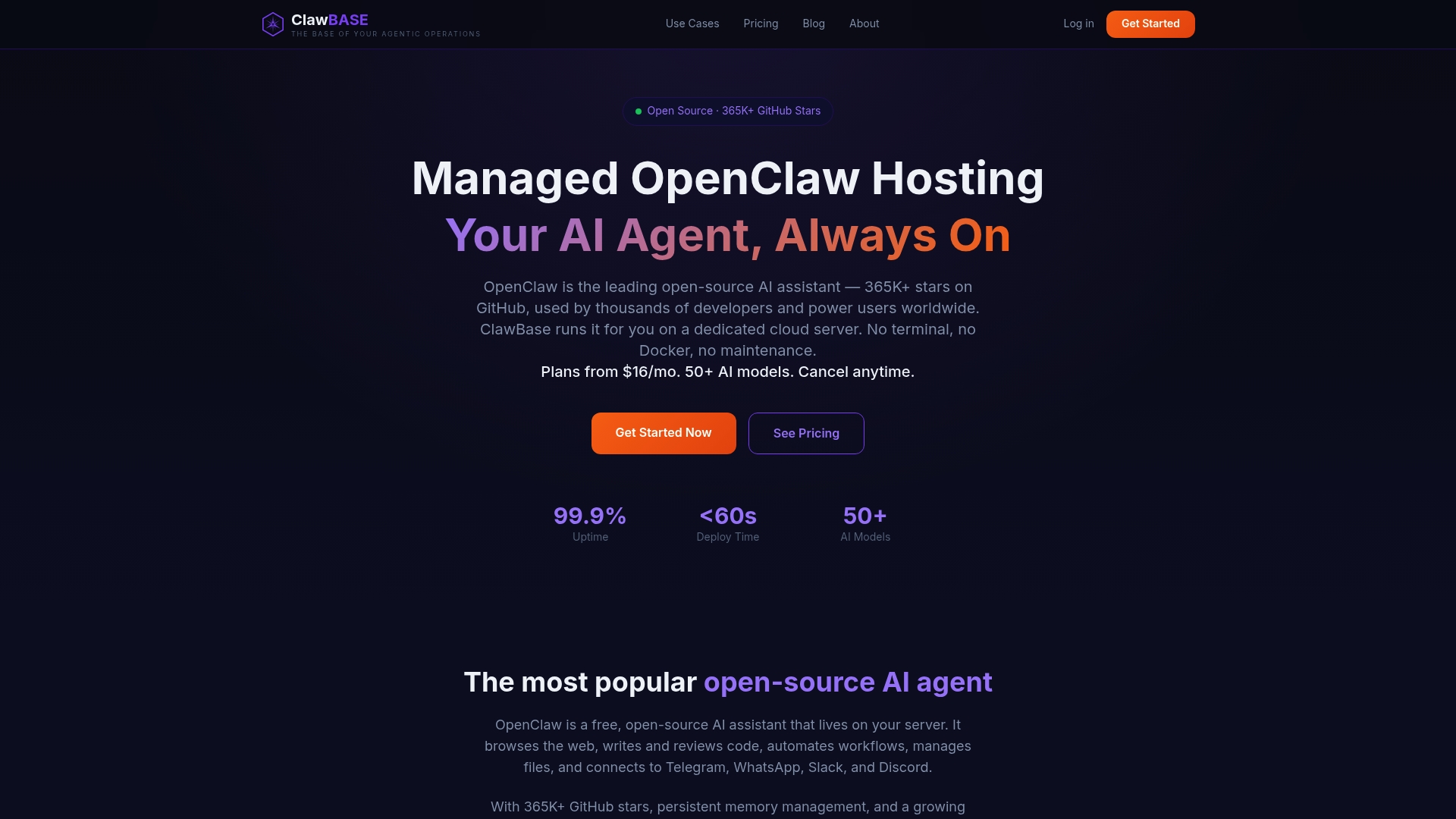
Plans start at $16 per month for LITE ($199 per year), with PRO at $33 per month ($399 per year) and MAX at $66 per month ($799 per year), and the entry plan comes with a 7-day free trial. See the full plan details or start from the ClawBase homepage. New to the platform? The 5-minute quickstart and our explainer on what OpenClaw is and how ClawBase runs it are good first stops, and the tutorial walks you through mastering your agent.
FAQ
Can I migrate OpenClaw to a new server without losing my chat history?
Yes, if you move the full state rather than only the config. Stop the Gateway, run openclaw backup create --output ~/Backups/openclaw --verify, restore on the new machine, then run openclaw doctor and restart. Confirm afterward that the dashboard shows your existing sessions.
Do I have to re-pair Telegram or WhatsApp after the move?
The official verification checklist expects channels to remain connected without re-pairing, because channel state is part of the backup. If a channel does ask you to pair again, check that the state path and profile match the old machine and that ownership is correct.
Why shouldn't I just copy the `.openclaw` folder?
A live copy of changing SQLite databases can capture mismatched database and WAL files. If you do copy by hand, stop the Gateway first. The built-in backup command is the safer route.
What changes when I migrate to managed hosting?
You stop handling the server, OS updates and backup scheduling. You still bring your workspace files, such as MEMORY.md and skills, reconnect your channels and re-enter provider keys. Before you commit, confirm how the host handles encryption, backups, updates and exports.
Sources
- OpenClaw migration guide
- OpenClaw backups guide
- OpenClaw rollback and recovery guide
- Backup integrity verification guide