How to Schedule Tasks Using an AI Assistant in 2026
2026-06-02

Automated task scheduling is the practice of delegating recurring or time-sensitive work to an AI agent that monitors triggers, executes actions, and reports results without manual input. When you schedule tasks using an AI assistant, you are not just organizing a to-do list. You are building a system where tools like Google Gemini Spark, Claude Plan, and skdul handle the repetitive coordination layer of your day so you can focus on higher-order work. The productivity gains are real: automated scheduling saves over 10 hours per team member weekly and cuts no-shows by up to 80% with configurable reminder sequences.
How to schedule tasks using an AI assistant: what you need first
Before any automation runs, you need three things in place: the right accounts, a connected calendar, and an AI assistant that supports agent-based scheduling.
Accounts and calendar access
Most AI scheduling tools require a Google Calendar or Microsoft Outlook connection. You will also need an active email account, since many agents parse incoming messages to create or update events. Set your time zone and working hours inside the tool before you configure any tasks. This prevents the agent from scheduling a 7 AM meeting when you are in a different region.

Choosing your AI scheduling tool
The market in 2026 offers several distinct options. Here is a direct comparison of the leading tools:
| Tool | Best for | Key feature | Approval step |
|---|---|---|---|
| Gemini Spark | Google Workspace users | Background agent with Task/Schedule/Skill model | Optional |
| Claude Plan | Developers and power users | Human-in-the-loop before every calendar write | Required |
| skdul | Teams and client scheduling | Multi-stage reminders, no-show reduction | Optional |
| OpenClaw via Clawbase | Self-hosted, privacy-focused users | Persistent memory, 50+ models, always-on agent | Configurable |
What to configure before your first task
* Connect your primary calendar and grant read/write permissions
* Define your working hours and block out personal time as unavailable
* Set a default meeting buffer (15 to 30 minutes is standard)
* Decide whether you want human approval before any calendar write
* Test with a low-stakes task first, such as a daily weather summary
Pro Tip: *Start with read-only permissions for the first week. Let the agent observe your calendar and suggest actions before you grant write access. This builds trust in the system without risking a bad calendar write.*
How to define tasks, schedules, and skills for AI scheduling
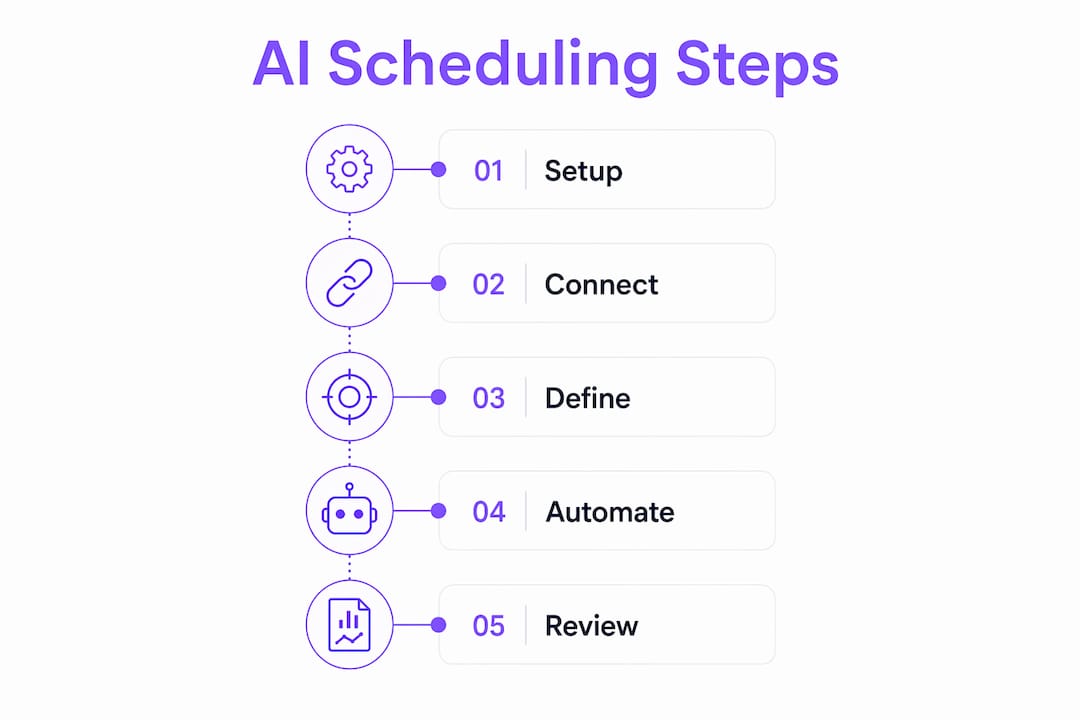
Gemini Spark structures automation into three explicit components: a Task (the goal), a Schedule (the trigger), and one or more Skills (the methods used to complete the goal). This three-part model is the clearest framework available for thinking about any AI scheduling setup, regardless of which tool you use. Separating intent into these components makes automation more reliable because the agent knows exactly what to do, when to do it, and which integrations to call.
Here is how to build a task from scratch using this model:
- Define the Task. Write a clear goal statement in plain language. “Check Gmail for unread emails from the last 24 hours, flag any requiring a response, and send me a summary” is a well-formed task. “Handle my email” is not. Specificity is the single biggest factor in whether the agent executes correctly.
- Set the Schedule. Choose a time-based or event-based trigger. Time-based triggers fire at a fixed interval: every weekday at 6:30 AM, for example. Event-based triggers fire when a condition is met: when a new email arrives from a specific domain, or when a calendar event is created with a particular keyword. Treating schedules as first-class triggers rather than simple reminders is what separates agent-based scheduling from basic calendar alerts.
- Assign Skills. Skills are the integrations and actions the agent can call. Common skills include Gmail read/write, Google Calendar create/update, Slack message send, and web search. Assign only the skills the task actually needs. Giving an agent access to every integration at once increases the surface area for errors.
- Add a human approval step. For any task that writes to a calendar or sends a message on your behalf, build in a confirmation step. Claude Plan requires approval before every calendar write, which prevents errors caused by ambiguous prompts. This is not a limitation. It is a design choice that protects you from the agent misinterpreting an instruction.
- Test with a dry run. Run the task once in a read-only or preview mode before activating it on a live schedule. Review what the agent would have done and compare it to your intent.
Pro Tip: *Write task instructions the way you would brief a new assistant on their first day. Include context, constraints, and examples of the desired output. “Flag emails from my manager and anyone on the project-alpha thread” outperforms “flag important emails” every time.*
A practical example: a daily morning briefing task fires every weekday at 6:30 AM, checks Gmail for unread messages from the last 24 hours, cross-references the calendar for the day’s meetings, and delivers a plain-text summary to your inbox. This multi-step automation is one of the most common starting points for professionals new to AI-driven task organization, and it demonstrates how a single well-defined task can replace 20 minutes of manual morning admin.
Common challenges when using AI assistants for scheduling
Even well-configured agents run into friction. Knowing where the failure points are saves you from diagnosing problems under pressure.
* Ambiguous task descriptions produce inconsistent results. If the agent interprets your instruction differently on Tuesday than it did on Monday, the task definition is the problem, not the model. Rewrite the goal with explicit conditions and examples.
* Calendar conflicts from missing buffers. AI agents can add travel time buffers automatically when travel exceeds 15 minutes, configurable by transit mode. If your agent is not doing this, check whether the travel buffer skill is enabled and whether the threshold is set correctly.
* Over-automation erodes work-life balance. Agents that schedule tasks across your entire waking day will fill every gap if you let them. Block biological anchors explicitly: meals, exercise, and wind-down time should be marked unavailable before the agent sees your calendar.
* Approval fatigue from too many confirmation requests. If you require approval for every action, you will start rubber-stamping requests without reading them. Tier your approvals: auto-approve low-risk read actions, require confirmation only for writes and sends.
> “The agent is only as good as the instructions you give it. Garbage in, garbage out applies to scheduling automation just as much as it does to any other AI task.” This is the most common lesson reported by teams adopting agent-based scheduling for the first time.
AI task management removes repetitive admin work rather than just organizing it. That distinction matters because it means the agent is actively executing steps, not just surfacing reminders. The implication is that poorly defined tasks do not just fail quietly. They execute incorrectly, and the downstream effects can include missed meetings, duplicate calendar entries, or messages sent at the wrong time.
How do leading AI scheduling assistants compare?
Choosing the right tool depends on your workflow, your technical comfort level, and how much control you want to retain over the agent’s actions.
| Feature | Gemini Spark | Claude Plan | skdul | OpenClaw via Clawbase |
|---|---|---|---|---|
| Task/Schedule/Skill model | Yes | Partial | No | Yes |
| Human approval step | Optional | Required | Optional | Configurable |
| Multi-stage reminders | No | No | Yes | Yes |
| Calendar integration | Google, iCal | Google, Outlook | Any via plugin | |
| Travel time buffers | No | Yes | No | Yes |
| Self-hosted option | No | No | No | Yes |
| Persistent memory | Limited | No | No | Yes |
Key differentiators worth noting:
* Gemini Spark is the most accessible entry point for Google Workspace users. The Task/Schedule/Skill model is well-documented and the background agent runs without manual triggering.
* Claude Plan is the strongest choice for developers who want fine-grained control. The required human approval before calendar writes is a deliberate safety mechanism, not a missing feature.
* skdul targets teams and service businesses where client no-shows are a measurable cost. Its multi-stage reminder sequences at 24 hours, 2 hours, and 15 minutes before an event are configurable and proven to reduce no-shows significantly.
* OpenClaw via Clawbase is the only self-hosted option in this group, which matters for professionals handling sensitive calendar data or operating in regulated industries.
The right tool is not always the most feature-rich one. A solo professional with a Google Workspace account and a need for daily briefings will get more value from Gemini Spark in one afternoon than from a complex self-hosted setup. A development team managing client deployments and sensitive data will find the persistent memory and privacy controls of a self-hosted agent worth the additional configuration.
Key takeaways
Scheduling tasks with an AI assistant works best when you define a clear goal, set a precise trigger, and assign only the integrations the task actually needs.
| Point | Details |
|---|---|
| Use the Task/Schedule/Skill model | Define what the agent should do, when to trigger it, and which integrations to call. |
| Require approval for writes | Human-in-the-loop controls prevent bad calendar entries from ambiguous instructions. |
| Start with read-only access | Test agent behavior before granting write permissions to reduce risk. |
| Add travel buffers explicitly | Configure transit mode and distance thresholds to avoid back-to-back conflicts. |
| Match tool to workflow | Gemini Spark suits Google users; Claude Plan suits developers; skdul suits teams with client scheduling needs. |
Why I think most people set up AI scheduling backwards
Most professionals I have seen adopt AI scheduling start by asking the agent to “manage my calendar.” That is the wrong starting point. It is the equivalent of hiring a new employee and telling them to “handle things.” The agent has no context, no constraints, and no definition of success.
What actually works is starting with one specific, high-friction task you do manually every day. For me, that was the morning email triage. I spent 20 to 30 minutes every morning sorting through overnight messages, flagging action items, and checking my calendar for conflicts. Once I defined that as a structured task with a 6:30 AM trigger and explicit Gmail and Calendar skills, the agent handled it in under two minutes with no errors.
The second thing I have learned is that the approval step is not a sign that the agent is not ready. It is a sign that you are being responsible. I kept Claude Plan’s required approval for calendar writes for three months before I trusted the agent enough to auto-approve low-risk events. That patience paid off. I caught several misinterpretations during that period that would have created real scheduling conflicts.
The broader point is this: AI task management adds value by removing repetitive execution steps, not by replacing your judgment. The professionals who get the most out of these tools treat the agent as a capable executor of well-defined instructions, not as an autonomous decision-maker. That mental model changes how you write tasks, how you review outputs, and how quickly you expand the agent’s permissions over time. Experiment deliberately, expand gradually, and keep the human approval layer until you have real evidence the agent is interpreting your intent correctly.
> *— ClawBase CEO*
Run an always-on AI scheduling agent with Clawbase
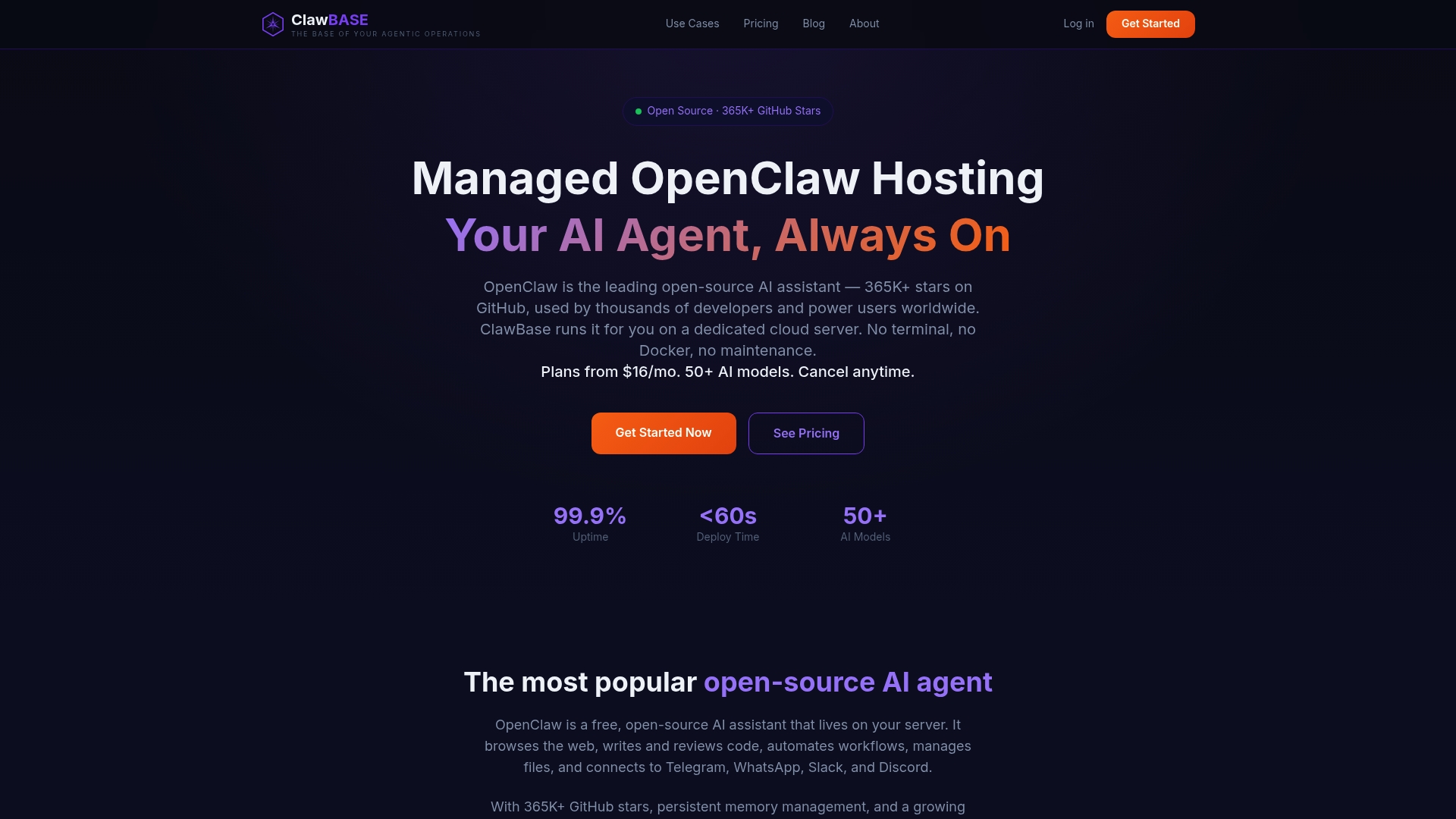
If you want a private, always-on AI agent that handles task scheduling without cloud dependencies or technical setup, Clawbase managed hosting is worth a close look. Clawbase deploys OpenClaw on a dedicated server with one-click setup, 99.9% uptime, and persistent memory so your agent retains context between sessions. Plans start at $16/mo with no sysadmin work required. You can explore the full range of AI agent use cases including automated scheduling, file management, and communication platform integrations across Telegram and Discord. For professionals who handle sensitive calendar data or want full control over their AI agent’s environment, it is a practical alternative to cloud-based scheduling tools.
FAQ
What does it mean to schedule tasks using an AI assistant?
Scheduling tasks using an AI assistant means defining a goal, a trigger time or condition, and a set of integrations the agent uses to execute the task automatically. The agent runs without manual input once configured.
How do I prevent my AI agent from making scheduling mistakes?
Require human approval before any calendar write, as tools like Claude Plan do by design. Ambiguous task descriptions are the leading cause of scheduling errors, so write instructions with explicit conditions and examples.
Can AI assistants add travel time to calendar events automatically?
Yes. Agents like the schedule-agent built on Claude can add travel buffers automatically when travel time exceeds 15 minutes, with the transit mode configurable by the user.
How much time can AI scheduling automation actually save?
Automated scheduling tools save over 10 hours per team member weekly according to skdul’s published data. The time savings come from eliminating manual reminder sending, conflict checking, and repetitive calendar updates.
Which AI scheduling tool is best for a solo professional?
Gemini Spark is the most accessible starting point for solo professionals using Google Workspace, given its native calendar integration and the well-documented Task/Schedule/Skill model. For privacy-sensitive workflows, OpenClaw via Clawbase offers a self-hosted alternative with persistent memory.
Recommended
* ClawBase — Managed OpenClaw Hosting from $16/mo
* Getting Started with ClawBase in 5 Minutes | ClawBase
* OpenClaw Skillsets — Extending Your Agent Beyond Chat | ClawBase
* Blog — OpenClaw Hosting Tips, Tutorials & Updates | ClawBase